Creating Razor Functions in the CMS Console
Note. For information about using Visual Studio to create or edit Razor functions, see Creating Razor Functions in Visual Studio.
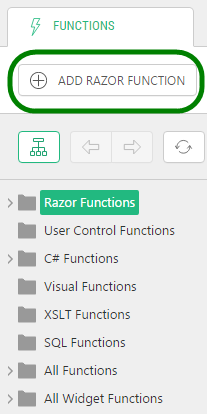
To create a Razor function in the CMS Console:
| 1. | In the Functions module, select Razor Functions. |
| 2. | Click Add Razor Function on the toolbar. |
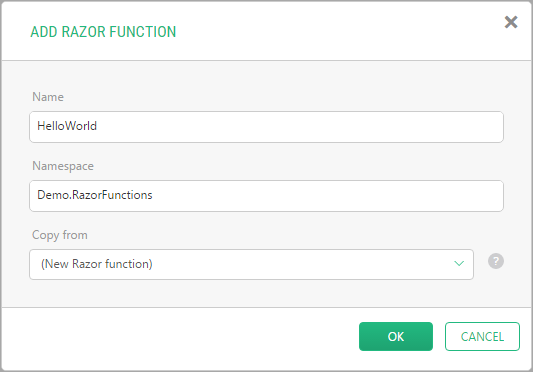
| 3. | In the Add Razor Function window, specify:
|
| 4. | Click OK. |
The function will appear under Razor Functions in the left pane, and open in Code Editor in the right pane.
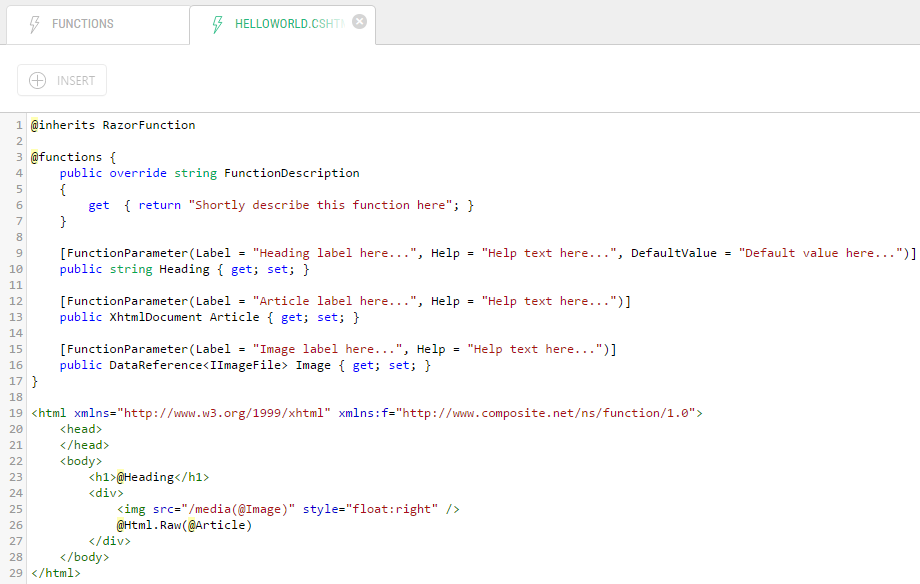
The new function already has some code that will help you get started.
@inherits RazorFunction
@functions {
    public override string FunctionDescription
    {
        get  { return "Shortly describe this function here"; }
    }
    [FunctionParameter(Label = "Heading label here...", Help = "Help text here...", DefaultValue = "Default value here...")]
    public string Heading { get; set; }
    [FunctionParameter(Label = "Article label here...", Help = "Help text here...")]
    public XhtmlDocument Article { get; set; }
    [FunctionParameter(Label = "Image label here...", Help = "Help text here...")]
    public DataReference<IImageFile> Image { get; set; }
}
<html xmlns="http://www.w3.org/1999/xhtml" xmlns:f="http://www.composite.net/ns/function/1.0">
    <head>
    </head>
    <body>
        <h1>@Heading</h1>
        <div>
			<img src="/media(@Image)" style="float:right" />
            @Html.Raw(@Article)
        </div>
    </body>
</html>
Note. To learn more about what a new Razor function includes by default, see Default Razor Function for more information.