Receiving an In-Store Pickup
It is possible that the store selected by the customer to pick up their purchases simply does not have the requested items in stock. The shipment must then be fulfilled by another store (or by the warehouse) and transferred to the customer's selected pickup location so they can retrieve their purchases in a timely fashion.
For the store tasked with fulfilling the order, the process unfolds as usual, however the transfer of parcels from one store to the other is managed internally, not through an external shipping provider.
For the store that is awaiting the items and will receive the customer for parcel pickup, here is how the process works:
|
1.
|
Click the hamburger menu. |
|
2.
|
Select Incoming. A list of shipments processed by other stores is displayed. |
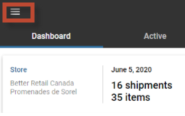
Figure 1 - Hamburger
|
3.
|
Select the order. If needed, use the search field at the top of the screen. |
|
4.
|
In the shipment details section, you will be able to see: |
|
a.
|
The number of shipments that the order contains, as a x/y equation (y corresponds to the total number of shipments in the order). |
|
c.
|
The store currently responsible for the shipment. |
Note: The icon that accompanies the store information indicates whether your store is currently responsible for the shipment. When your store is in charge of the shipment, the icon looks like this:  . When another store is in charge of the shipment, the icon looks like this:
  .
.
|
d.
|
The number of items contained in the shipment. |
|
5.
|
When the shipment has been packed and transferred by the other store or the warehouse, that is, once the parcels have left their location and are en route to your store (the pickup location), the shipment status will change to Pending Reception and the shipment will appear among your active orders. |
|
1.
|
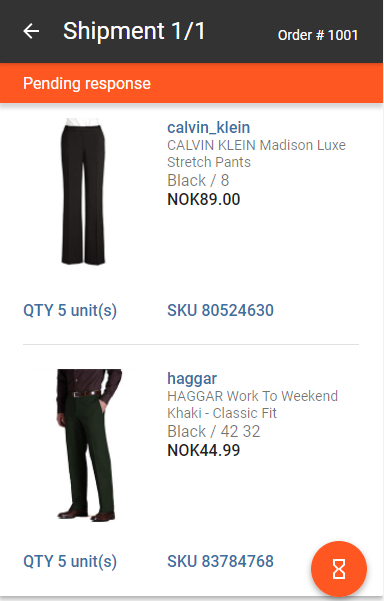
Once the parcels arrive at your store, access your active orders and tap the shipment to select it. |
|
2.
|
Confirm that you have the correct parcels in hand. |
|
3.
|
Tap the yellow action button to accept the shipment. The shipment is now Ready for pickup. An email notification is sent to the customer. |
Tip: Count the parcels you have received and compare this number to the number in the shipment details. If a transfer tracking number was provided, check it against the number on the shipping label.
|
1.
|
When the customer drops by to pick up their purchases, locate the shipment in the Active tab. |
|
2.
|
Tap the blue action button to indicate that the shipment has been picked up. |
|
3.
|
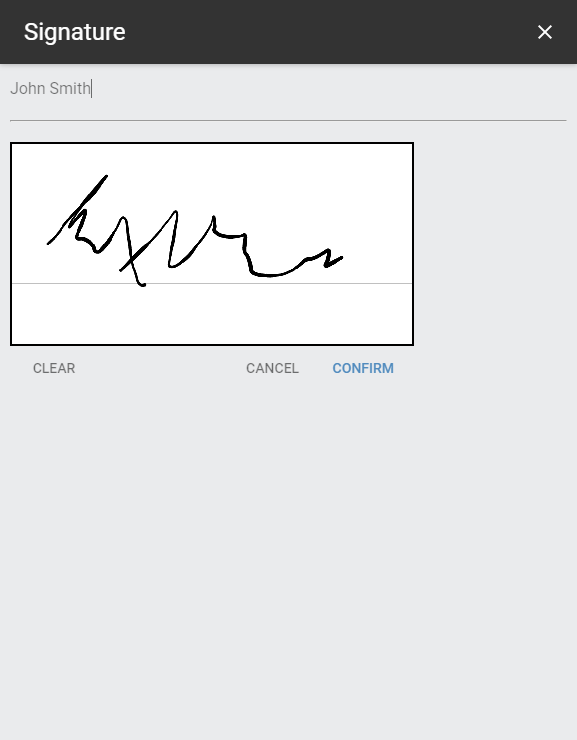
Ask the customer to provide their signature. |
|
4.
|
Tap Confirm. The shipment status is now Pickup Completed. |
The shipment is now added to the list of completed orders and disappears from the active orders list.
REFERENCES