Viewing Order Details
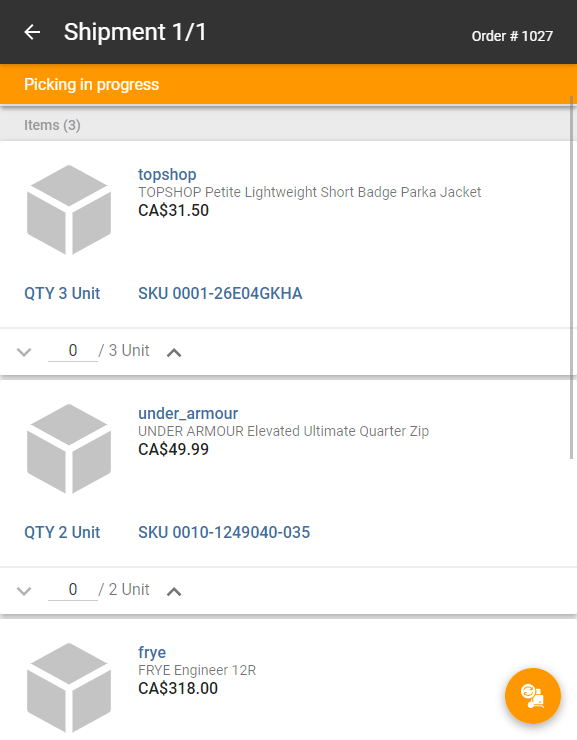
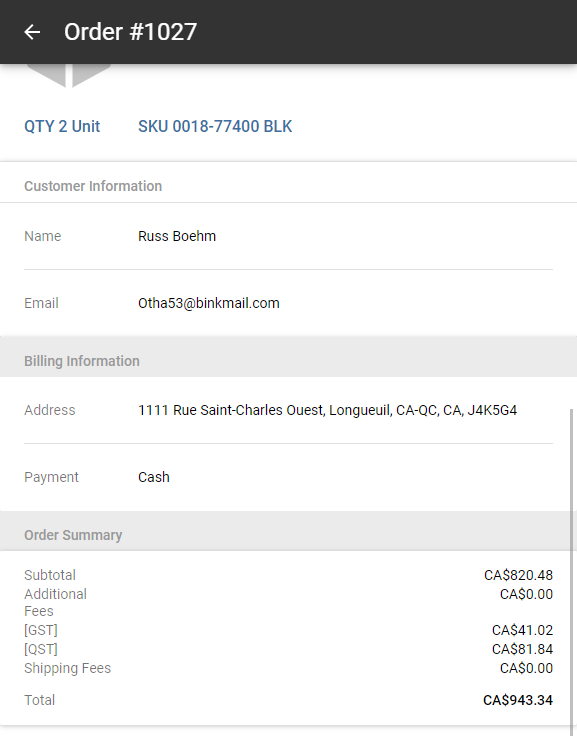
The order details view shows all the shipments contained within the order, as well as order-specific information, customer information, billing information and an order summary with price and tax breakdown values.
In the Active tab, each order is represented by two sections. To view order details, tap the top section that includes the customer's name.
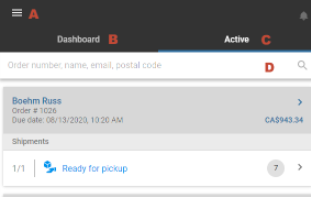
Figure 1 - Active Order
Shipment details are organized in five sections:
|
•
|
Order Information: Lists order number, total price, date and time the order was placed. |
|
•
|
Shipments: Lists the number of shipments included in the order presented as an x/y ratio, shipment status, store in charge of fulfillment, items they contain, including their name, price, image, quantity requested and SKU. |
|
•
|
Customer Information: Displays the customer name, email address and phone number. |
|
•
|
Billing Information: Lists the billing address and payment method. |
|
•
|
Order Summary: Shows the subtotal, additional fees, taxes, shipping fees, promo codes and total price. |
Enlarging an image
Mobile Store Fulfillment allows you enlarge images when viewing the details of an order.
|
1.
|
Tap on an image in an order to enlarge it. |
|
2.
|
Touch the screen with two fingers and gradually spread them apart to zoom in. |
|
3.
|
Touch the screen with two fingers and gradually pinch them closer together to zoom out. |
|
4.
|
Tap on the image again to return to the order details screen. |
Shipment Designation
Orders assigned to MSF are divided into shipments. It is possible for an order to contain a single shipment since all items are available at the store to which it is assigned. In this case, all items are grouped into a single shipment that will be fully processed by your store. When this is the case, the number 1/1 is displayed under the shipment section.

Multiple (Split) shipments
However, if the customer's order contains items that are not available in one store, the order may be split into multiple shipments and distributed between your store and the warehouse. When your store does not have all the items in stock, the warehouse will handle the rest of the order. However, you will be able to view the items sourced and sent from the warehouse.