Fixing aisle
When the product is not available at the location specified on the screen, you can associate the product with the new location. For example, Product A was moved from Aisle A to Aisle I and the system has not been updated.
| 1. | Tap an item in the picking list. |
The item details are displayed.
| 2. | Tap Fix Aisle. |
| 3. | Under Select the correct area for this product, select an area from the drop-down menu. |
| 4. | Tap Fix Aisle. |
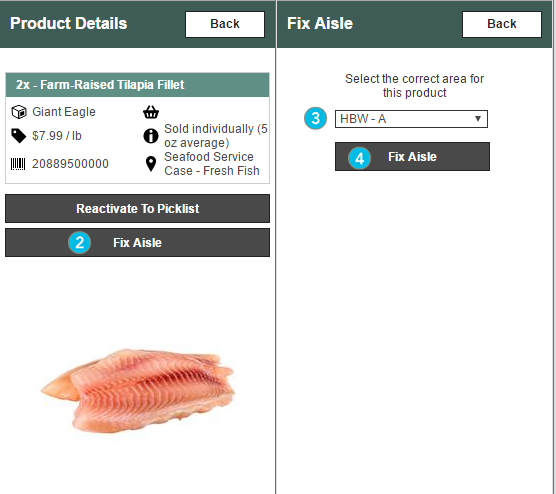
Figure 1 - Fix aisle
When the product location is modified, the location icon is modified.
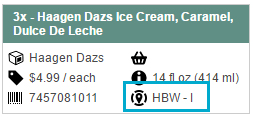
Figure 2 - Updating location icon