Navigating the Mobile Store Fulfillment application
Screen Layout
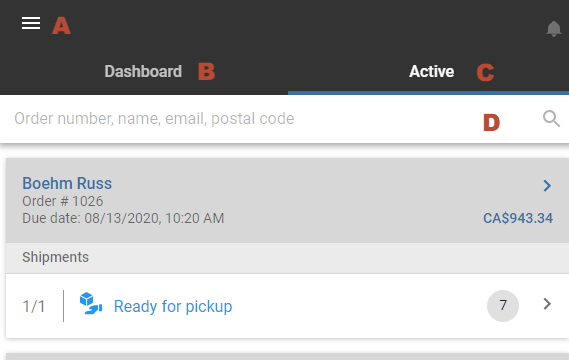
The Mobile Store Fulfillment application is separated into four sections:
| a. | The hamburger menu, where you can switch stores if you have access to more than one and choose the type of shipment you wish to view. |
| b. | The Dashboard, which provides an overview of your store's order fulfillment performance. |
| c. | The Active tab, where you can access the orders assigned to your store. |
| d. | The search field bar, that lets you find orders using their numbers or the customer's email address or postal code. |
Basic Interactions with the application
Access shipments, select elements in a list or use action buttons simply by tapping them.
To use the search field, tap it and use the onscreen keyboard to enter your search terms, then tap the magnifier icon.
Certain actions require a swiping motion using your finger or a stylus. These include:
| • | Rejecting a shipment once its fulfillment has begun - swipe left. |
| • | Requesting the transfer of a shipment to another store - swipe left. |
| • | Seeing the remaining time in the current SLA policy - swipe right. |
Put your finger or the stylus on the screen and move it in the desired direction.
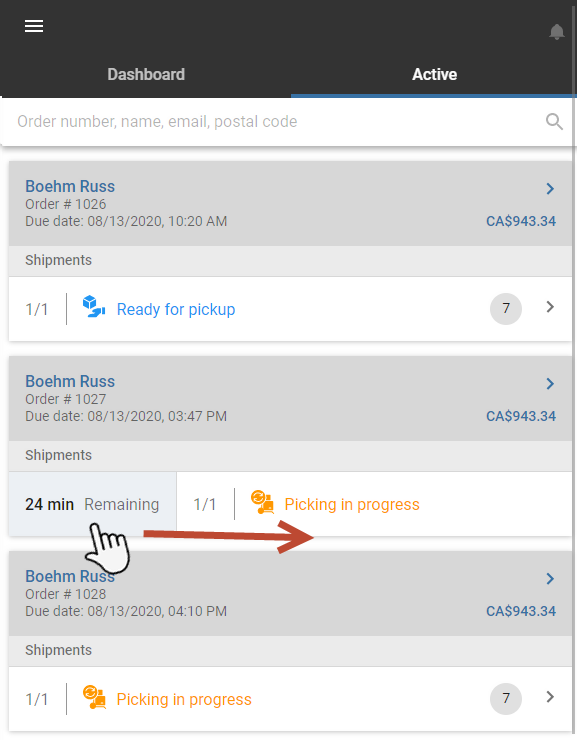
If you are using Mobile Store Fulfillment on a computer, it is still possible to swipe. Using your mouse, click and hold the left mouse button while you move your mouse to the left or right.