URL Suffixes
In Experience Management, URLs to web pages follow this model:
http[s]://<hostname>[/<language code>]/<path to a page><url suffix>
where:
|
•
|
<hostname> stands for a hostname, for example “www.betterretail.com” |
|
•
|
<language code> stands for the language code of the localized version of the website, for example . “fr-ca” (which can is normally omitted for the website in the default language) |
|
•
|
<path to a page> stands for a path to a specific page and is built by appending the "UrlTitle" fields of pages and their ancestors, for example. products/ipad2/features |
|
•
|
<url suffix> stands for a page suffix if used, for example. “.aspx” |
For example: http://www.betterretail.com/fr-ca/products/ipad2/features.aspx
With the URL Configuration tool, you can configure:
|
•
|
whether to append any extension to the page title (“URL suffix”) |
|
•
|
and if so, what extension to append |
For example, you can choose to append:
|
•
|
no extension at all (http://www.betterretail.com/fr-ca/products/ipad2/features) |
|
•
|
‘.aspx’ as the extension (http://www.betterretail.com/fr-ca/products/ipad2/features.aspx) |
|
•
|
or any other appropriate extension (‘.html’) (http://www.betterretail.com/fr-ca/products/ipad2/features.html) |
|
1.
|
In the System module, select URL Configuration and click Edit URL Configuration. |
|
2.
|
In the window that opens, specify the extension you want appended to web page URLs in the Page URL Suffix field. Start the value with the period (‘.’). (Leave the field blank if you intend no extension appended.) |
|
3.
|
Save the modifications. |
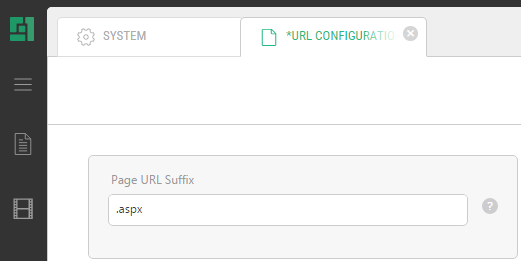
By default the system checks whether the website is running in Integrated mode, and if so, the Page URL Suffix will be set to an empty value; otherwise, ‘aspx’.
Note: The IIS7 Integrated mode is required for proper work of URL suffixes other than ‘.aspx’.