Creating and Managing Fields
Each datatype can have one or more fields. You should add at least one field when creating a datatype. The number and types of the fields you can add depend on your needs.
For example, if you have a form on a page where the user enters personal data, you can have text fields for the first and last names, email address and phone number, a large text field (text area) for the address, and a date field for the date of birth.
When you add a field to a datatype, the settings editor allows you to manage the requirements. Fields have their basic and advanced properties per corresponding tab in the settings editor.
Best practice : Set most of the basic properties manually while the advanced properties are set automatically for you with default values. However, if you want to fine-tune a field, you can set the advanced properties manually, too. For example, you can select another widget for the field.
Each field you add can be of a certain type. The type determines what kind of data the field can hold. Based on the field type, some of the field’s properties can differ.
For example, for a string type you can specify the string’s maximum length, for a decimal type – the number of decimals, and for a data reference – its reference type.
The field type also determines what kind of a widget will be used for this field on the form. For example, with a string field intended for short texts, a text box widget will be most likely used, while the date field will use a date selector widget.
When creating global datatypes and page data folders, you can manage the name and the type of the key field named “Id” by default. For more information, see “Managing key fields” .
The following topics explain what basic and advanced properties you can set when adding a field to a datatype with a closer look at field types.
Basic Field Properties
When you add a field, you must set different basic properties such as its name, label, help text, position and type as well as indicating if the field is optional or not.
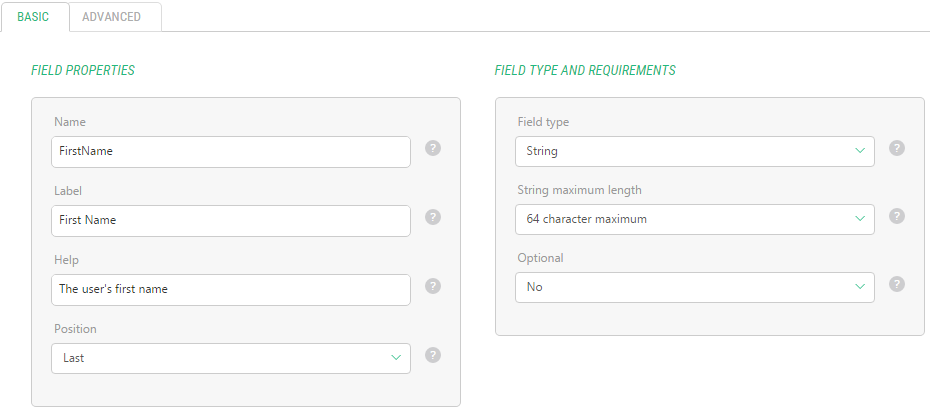
The following list details the basic properties:
|
Property |
Definition |
|
Name |
The name of the field used by Experience Management to identify this field. The field cannot contain the space character or any other special characters. |
|
Label |
The name of the field displayed to the user in GUIs as a field label. It appears as a field label when adding a data item to a datatype or on the forms based on these datatypes. If you do not specify the label it will copy the value of the Name field. |
|
Help |
Short help text associated with this field. It pops up when the user clicks the help button next to the field on a form. |
|
Position |
The position of the field with regards to other fields. By default, the Position is set to Last, which means the field will be added in the end of the field list. |
|
Field Type |
The type of the field that determines what data this field can hold. |
|
Optional |
This property indicates whether the input in this field is required or optional. |
Based on the field type, you might need to set an additional property specific to this type (for example, string maximum length. These additional properties are explained in the next section dedicated to the field types.
For each global datatype, Experience Management allows you to create fields of the following types:
| • | String |
| • | XHTML |
| • | Integer |
| • | Decimal number |
| • | Date |
| • | Boolean |
| • | Unique Identifier (GUID) |
| • | Data reference |
When you select the string, decimal number or data reference for the field type, you can also set an additional property specific to this type.
Experience Management sets this property to a default value but you can also modify this value.
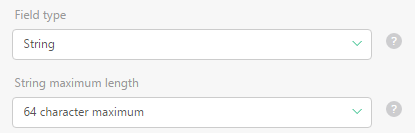
For the String type, you can also specify the string’s maximum length. You can select 16, 32, 64, 128, 256, 512 and 1024 characters for the maximum or set the string to the unlimited length. By default, the value is set to 64.
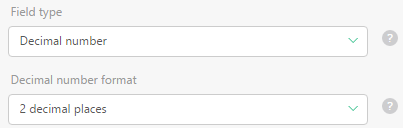
For the Decimal number type, you can also set the number of decimal places. You can choose 1, 2, 3 or 4. The default value is set to 2.
For the Data references, you can select the reference type; the entity you want to reference in this field. This will result in a special field that will serve as a list of these entities.
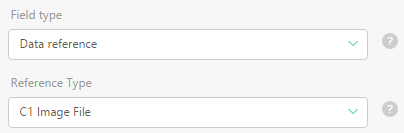
The data references can be of the following types:
Data Reference Types | |
Property | Description |
C1 Image File | Image files available in the Media Archive |
C1 Media File | Media files available in the Media Archive |
C1 Media Folder | Folders available in the Media Archive |
C1 Page | Pages created for one or more websites in Experience Manager |
By default, the reference type is set to C1 Image.
In addition to these predefined reference types, if you have global datatypes, you can also select them for the reference type. In this case, the data items of this datatype will be listed as entities in the field of this type.
Advanced Field Properties
A number of advanced properties allow you to fine-tune the field you add to a datatype.
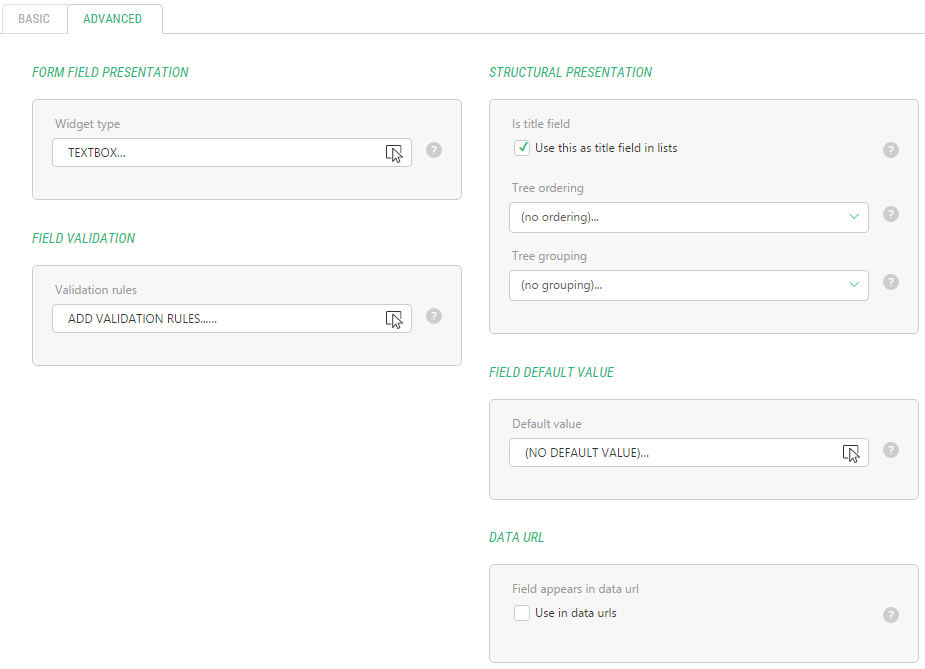
Every time you add another field, its advanced properties are set to defaults automatically. You can choose to override these default values.
Field Types | |
Property | Description |
Widget type | A widget to serve as an input control on a form representing this datatype. |
Validation rules | Constraints and limitations you can apply to the data entered in this field. |
Is title field | When checked, it indicates that this field will be used as the title field when listing data in views like tree structures etc. |
Tree ordering | When the Order ascending (A-Z) or Order descending (Z-A) option is selected, this field will be used to sort data in lists in the order specified. Based on the number of fields in the datatype, you can also select this field to Order 2 ascending or Order 2 descending and so on. |
Tree grouping | When the Group by this field option is selected, this field will be used to group data in long lists, which improves their readability. Based on the number of fields in the datatype, you can also select this field to Group as 2nd priority and so on. |
Default value | The value, to which the field will be set by default when a new data item is added. |
Field appears in Data URL | When checked, it indicates that this field will appear in Data URLs. |