Widgets
Widgets are controls used in input forms that serve as form fields. You can see widgets when you add data items in Experience Management or in input forms on pages. They get values the user enters and pass these values to the datatype fields they are mapped to. Each widget has a specific field behind it. The type of the widget depends on the type of this field.
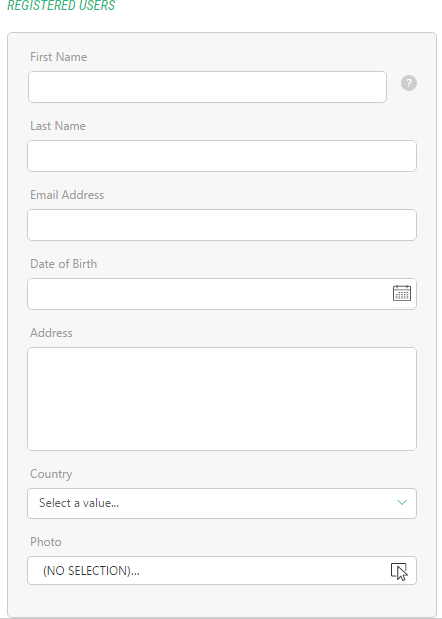
When you add fields to a datatype, Experience sets a default widget for this field. However, you can replace the default widget with some other widget available for this type of the field.
Some simple field types might only have one widget associated with it (for example, the integer field), while other field types can have a set of widgets you can choose from (for example, the string field).
Quick Search in Dropdown Lists
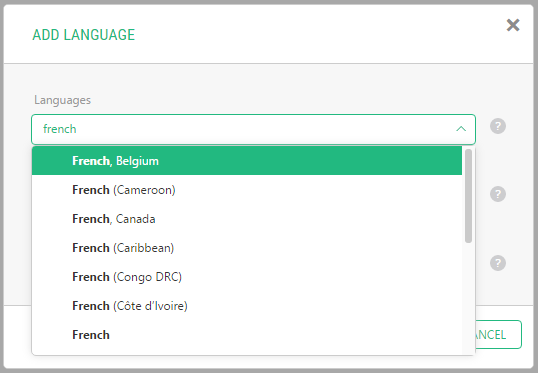
The selector widgets with dropdown lists allows you to quickly find an item in the list.
Start typing the word you want to find in the list, and the list will drop down, filter out all non-matching items and pre-select the first matching item.
Selecting a widget for a field
When you add a field and set their basic and advanced properties, you can select a proper widget to render this field. Experience Management selects a default widget for the field you add. You can however replace the default widget with some other widget if more are available for this type of a field.
| 1. | Select a field you want to edit. |
| 2. | On the Advanced tab, click the Widget type field to open the Field Widget Configuration window. It already has a widget selected. |
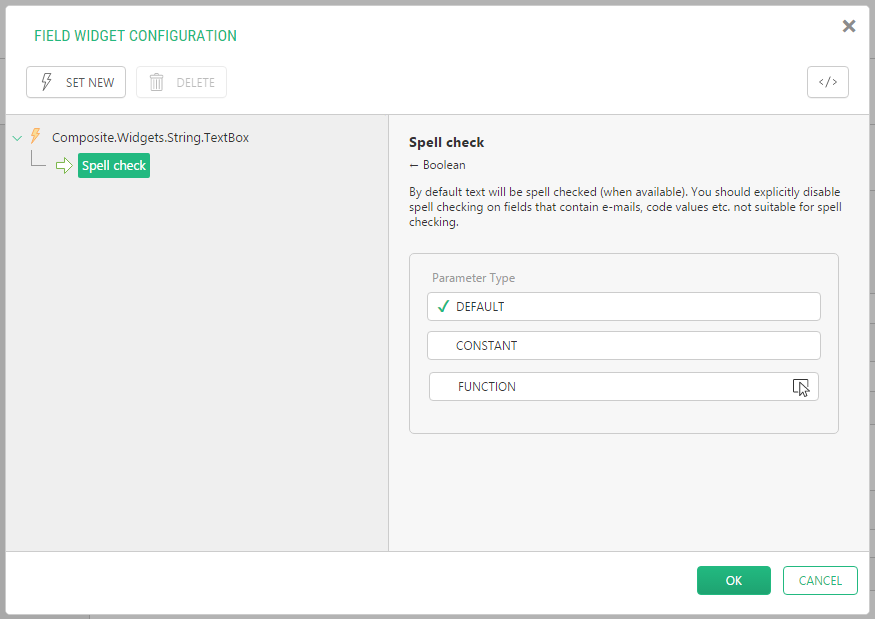
| 3. | Click Set New to open the Select Function window. Here, you will find all the widgets available for this specific field. |
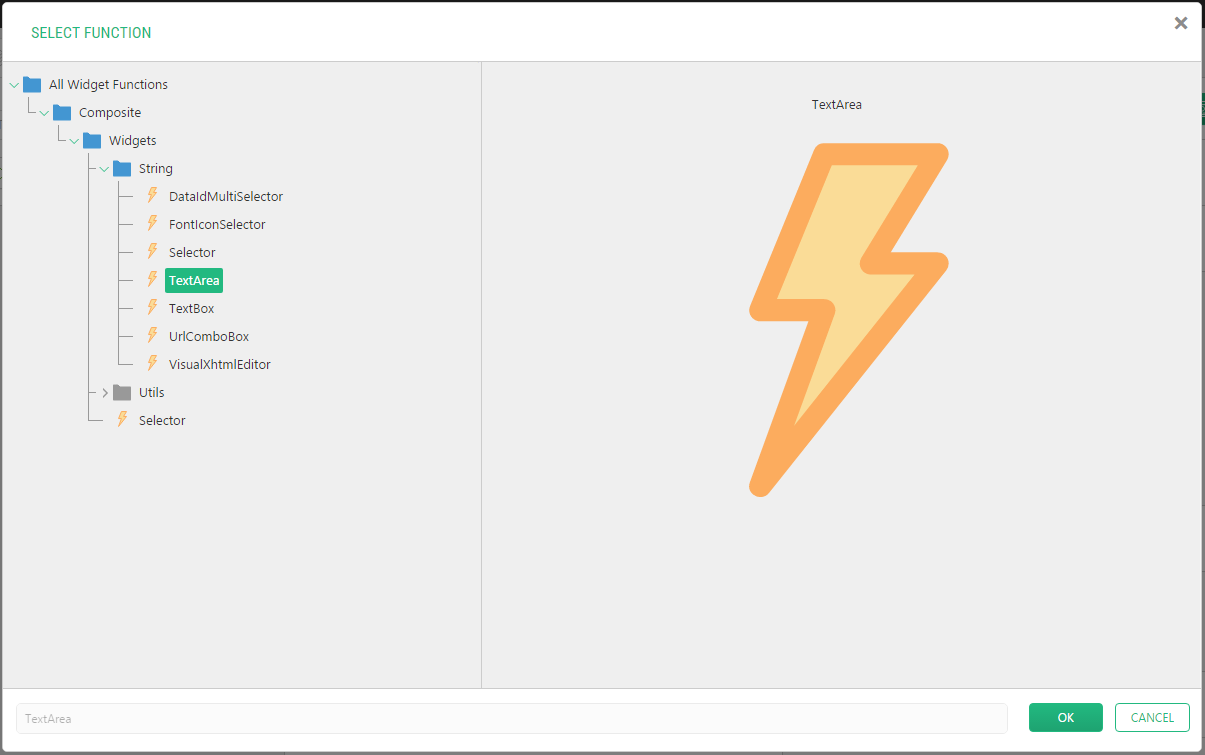
| 4. | Locate and select the widget you want to set for the field and click OK. |
| 5. | Click OK in the Field Widget Configuration window. |
The Widget type field is now set to the widget you have selected.

About Widgets
Experience Management features a number of widgets that can be used with one or more datatype fields:
| • | TextBox |
| • | TextArea |
| • | DateSelector |
| • | DateTimeSelector |
| • | CheckBox |
| • | BoolSelector |
| • | VisualXhtmlEditor |
| • | DataIdMultiSelector |
| • | Selector |
| • | Optional Selector |
| • | ImageSelector |
| • | MediaFileSelector |
| • | MediaFileFolderSelector |
TextBox
The TextBox widget serves as an input control for texts strings and numbers.

This widget is available for the String, Integer, decimal and GUID fields:
| • | Composite.Widgets.String.TextBox |
| • | Composite.Widgets.Integer.TextBox |
| • | Composite.Widgets.Decimal.TextBox |
| • | Composite.Widgets.Guid.TextBox |
The TextBox widget is default for the String, Integer, Decimal and GUID fields.
TextArea
The widget serves as an input control for large texts.
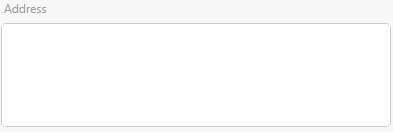
This widget is only available for the Composite.Widgets.String.TextArea String field:
UrlComboBox
The UrlComboBox allows you to specify absolute URLs, or select a page or media file via the Select Page or File dialog box.

To edit the value as a text string, click the Edit button on the left of the widget. To select a page or file,click the button in the widget on the right.
This widget is only available for the Composite.Widgets.String.UrlComboBox String field:
DateSelector
The DateSelector widget allows you to select a date as an input value. As the user clicks the widget, a month calendar drops down where the user can navigate to the specific year and a month and select a date.
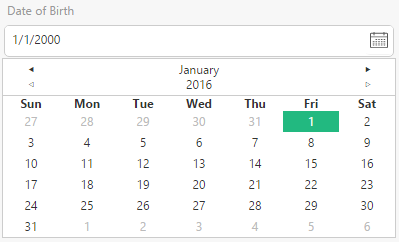
This widget is only available for the Composite.Widgets.Date.DateSelector Date field:
The DateSelector widget is default for the Date field.
DateTimeSelector
The DateTimeSelector widget allows you to select not only a date but also time as an input value. Clicking the widget displays a calendar selector. You can navigate to the specific year and a month and select a date. When the date is set, you can edit the time in the widget.

This widget is only available for the Composite.Widgets.Date.DateTimeSelector Date field.
CheckBox
The CheckBox widget is as an input control for selecting one of the two opposite options. You can allow multiple selections by clicking the checkbox.
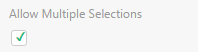
This widget is only available for the Composite.Widgets.Bool.CheckBox Boolean field.
The CheckBox widget is default for the Boolean field.
BoolSelector
The BoolSelector widget is a variation of the CheckBox widget. While the checkbox allows you switching between 2 options the BoolSelector widget allows you to select one of the two radio buttons representing two options.
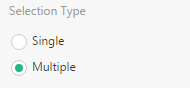
This widget is only available for the Composite.Widgets.Bool.BoolSelector Boolean field.
VisualXhtmlEditor
The VisualXhtmlEditor widget allows you to launch Visual Editor to specify XHTML-formatted text as an input value for a string field.

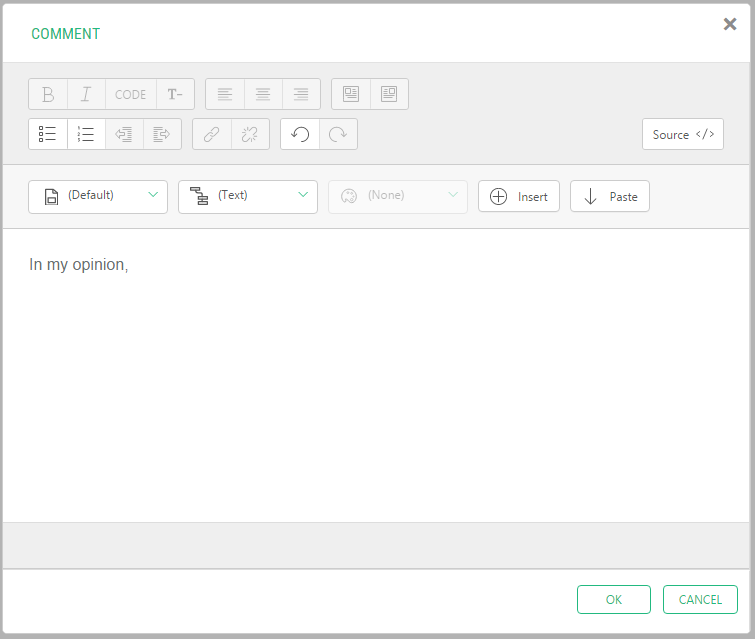
This widget is only available for the Composite.Widgets.String.VisualXhtmlEditor string field.
DataIdMultiSelector
The DataIdMultiSelector widget displays a list of input values available for multiple choices. The input values represent entities such as image files, media files, media folders, pages or data items of available datatypes.
It comes in two UI views: verbose and compact
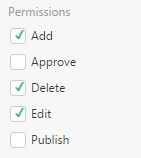
The verbose UI view lists values with check boxes next to them allowing multiple selections.
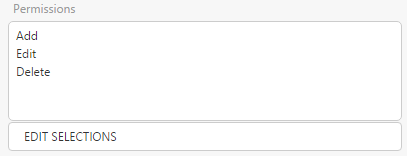
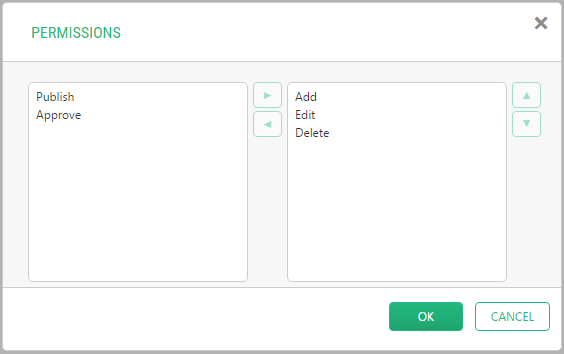
The compact UI view allows you to launch the selection editor where the user can select one or more values moving them from the list of available values to the list of selected ones.
This widget is only available for the Composite.Widgets.String.DataIdMultiSelector string field.
Selector
The Selector widget displays a list of input values. In most cases, the selector is displayed as a drop-down.
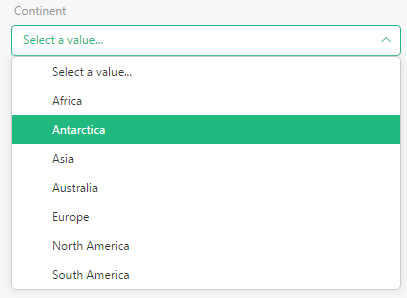
This widget is available for the string field and data reference fields of different reference types (including available datatypes):
| • | Composite.Widgets.String.Selector |
| • | Composite.Widgets.CompositeDataTypesIImageFile.Selector |
| • | Composite.Widgets.CompositeDataTypesIMediaFile.Selector |
| • | Composite.Widgets.CompositeDataTypesIMediaFileFolder.Selector |
| • | Composite.Widgets.CompositeDataTypesIPage.Selector |
The Selector widget is default for datatype reference types.
OptionalSelector
Like the Selector widget, the OptionalSelector widget displays a list of input values. However, it includes another value: <NONE>, which allows the user not to select any of the values available.
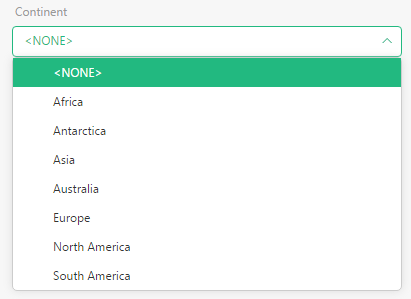
This widget is available for the string and data reference fields of different reference types (including available datatypes):
| • | Composite.Widgets.String.OptionalSelector |
| • | Composite.Widgets.CompositeDataTypesIImageFile.OptionalSelector |
| • | Composite.Widgets.CompositeDataTypesIMediaFile.OptionalSelector |
| • | Composite.Widgets.CompositeDataTypesIMediaFileFolder.OptionalSelector |
| • | Composite.Widgets.CompositeDataTypesIPage.OptionalSelector |
Other Selector-Like Widgets
Other selector-like widgets are specific selector-like widgets available for CMS Page, CMS Image File, CMS Media File and CMS Media Folder reference types:
| • | PageSelector |
| • | ImageSelector |
| • | MediaFileSelector |
| • | MediaFileFolderSelector |
Each of these widgets is default for the Data Reference field of the corresponding reference type.