Load User Control
EXPERIENCE MANAGEMENT > FUNCTIONS
In ASP.NET, you can create a custom Web User Control (.ascx) and use it on an ASP.NET page (.aspx). As Experience Management is an ASP.NET based content management system, you can also use your user control on a page created in Experience Management.
To make a user control available on a page:
|
1.
|
Add a user control (.ascx file) to the website using Visual Studio. |
|
2.
|
Embed this user control within a page using the ad-hoc function in the CMS Console. |
When you create a user control, select where you are going to store it on a website. In general, you can place it anywhere on the website; however, we recommend that you create a subfolder in the Frontend folder and place your user control there.
Best practice: Create a hierarchy of subfolders in ~/Frontend that will reflect the namespace hierarchy of your control, then create the Controls subfolder and place the user control there, for example: ~/Frontend/Custom/Web/Forms/Controls/HelloWorld.ascx.
You should remember the path to the control on the website because you are going to use the path when embedding the control.
To create a user control:
|
1.
|
Open your website in Visual Studio (see “Hello World Page in Experience Management). |
|
2.
|
In Solution Explorer, right-click the folder where you want to create your user control and click Add New Item. |
|
3.
|
In the Add New Item window, select Web User Control, type in the name and click Add. This will generate an empty control and open it in Visual Studio Editor. |
|
4.
|
Edit your control. For the purpose of this example, make it simple - type “Hello, World!” and save it. |
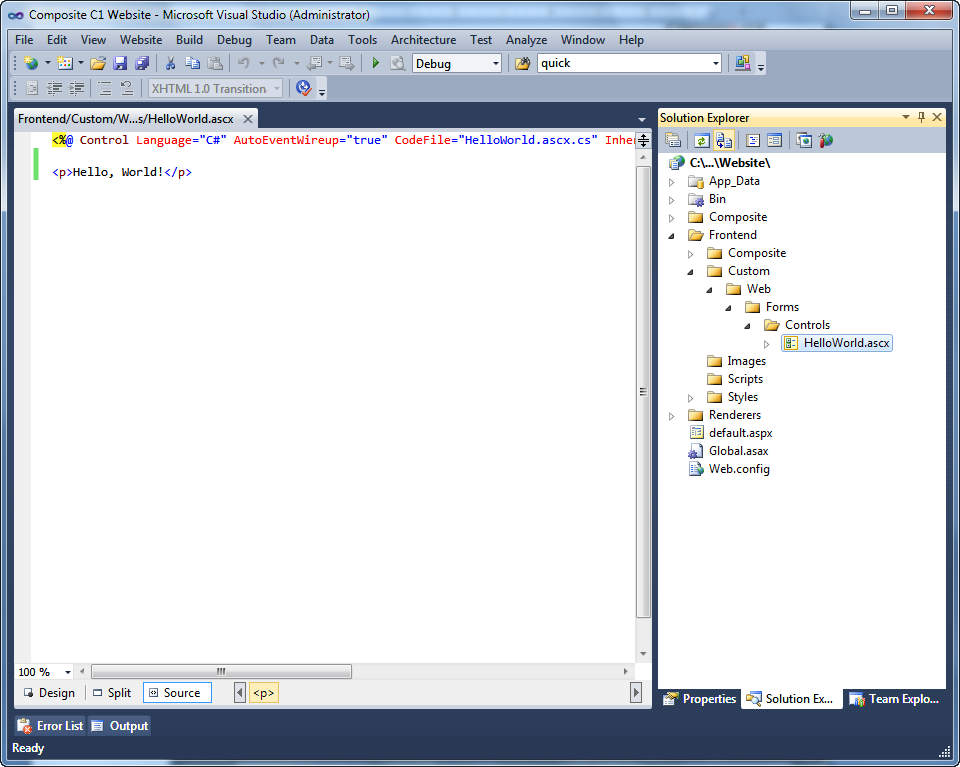
This is a very simple sample. Any type of Web user control (ascx) can be thus created and used.
To embed a user control within a page, you should use the ad-hoc CMS function – LoadUserControl.
First of all, select where you want your user control to appear:
|
1.
|
Log in Experience Management. |
|
2.
|
In the Content module, select the page where you want to embed the user control and click Edit Page on the toolbar. The page will open in Content Editor. |
|
3.
|
Place the cursor where you want your user control to appear on the page. |
|
4.
|
Insert the user control using the Composite.Asp.Net.LoadUserControl function: |
|
5.
|
On the page’s toolbar, click Insert, then Function. |
|
6.
|
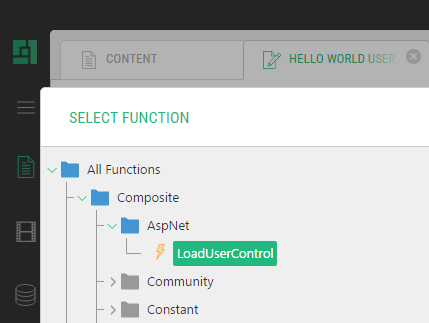
In the Select Function window, expand All Functions, Composite, and then Asp.Net and select the LoadUserControl function. |
|
7.
|
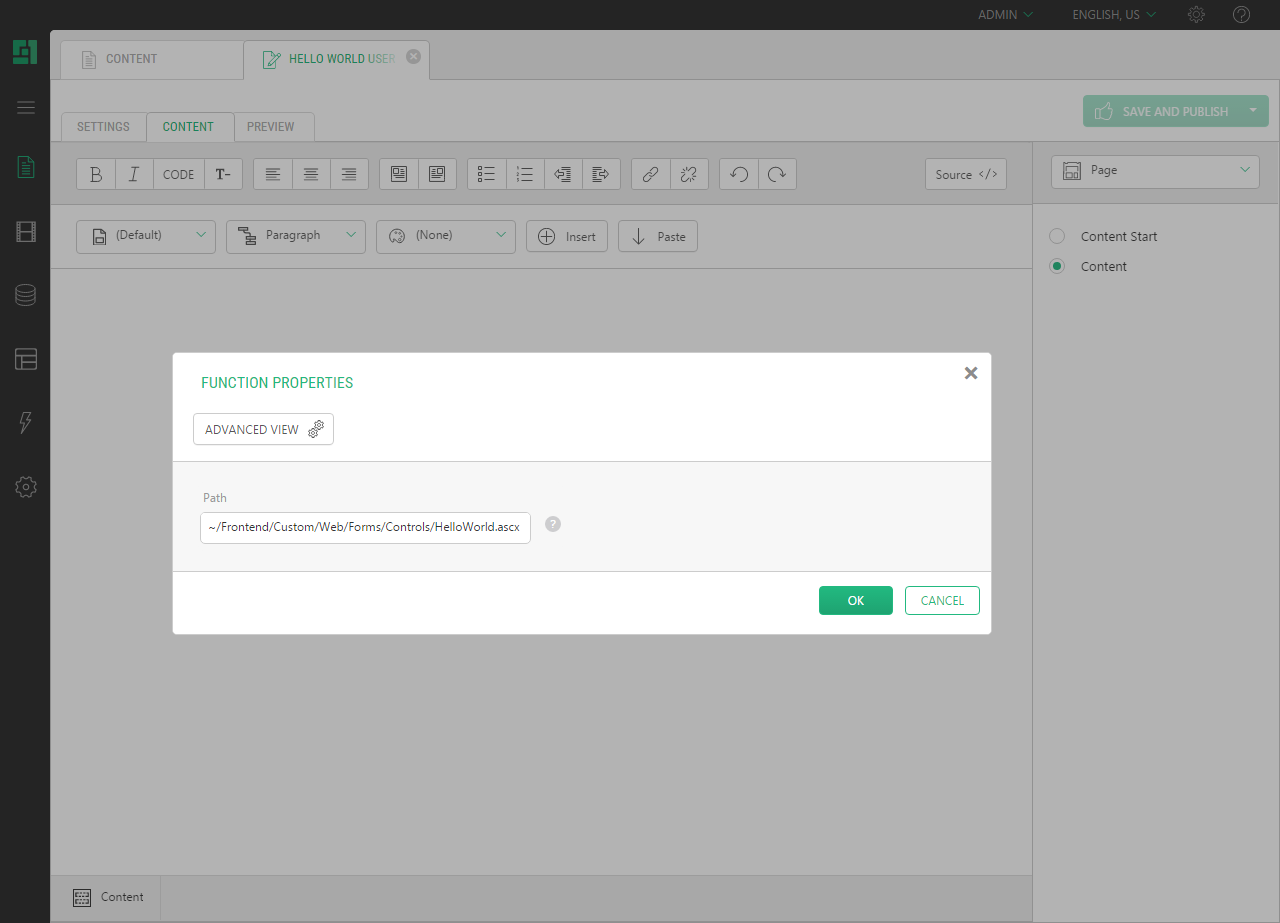
Click OK. The Function Properties window appears. |
|
8.
|
Select the Path property and enter the path to the user control on the website, e.g. ~/Frontend/Custom/Web/Forms/Controls/HelloWorld.ascx. |
To view the result:
|
1.
|
Save and publish the page. |
|
2.
|
In Visual Studio, press F5 to launch the website in the browser and browse to the page. The user control appears on the page with the text that reads “Hello, World!” |