Processing an In-Store Pickup
For an in-store pickup, the customer decides where to pick up their order. If the selected store has the requested items in stock, the shipment is automatically assigned to it.
Important: Stores selected for in-store pickups that have the items in stock are not able to refuse these shipments. If the requested items cannot be sold (because they are damaged, used as demos or the stock levels are incorrect), the selected store must request a shipment transfer. The transfer allows another store to pick and pack the items and transfer them to the selected pickup location. Transfers are requested for entire shipments, not only for missing items.
IF YOUR STORE CAN FULFILL THE ORDER
If your store has the requested items in stock, the shipment is automatically assigned to you with a Ready for picking status.
To move from one step to the next, use the action button located in the bottom right corner of the window.
|
1.
|
In the Active tab, tap the shipment to select it. |
|
2.
|
Tap the orange action button to begin picking. to begin picking. |
|
3.
|
Pick the requested items, enter the quantities you have picked and complete picking by tapping the yellow action button . . |
|
4.
|
Pack the items into one or more parcels, indicate the type of parcels used and complete packing by tapping the green action button . . |
|
5.
|
The shipment status now shows Ready for pickup and the customer receives an email notification. The shipment remains among your active orders. |
|
1.
|
When the customer drops by to pick up their purchases, locate the shipment in the Active tab. |
|
2.
|
Tap the blue action button to indicate that the shipment has been picked up. to indicate that the shipment has been picked up. |
|
3.
|
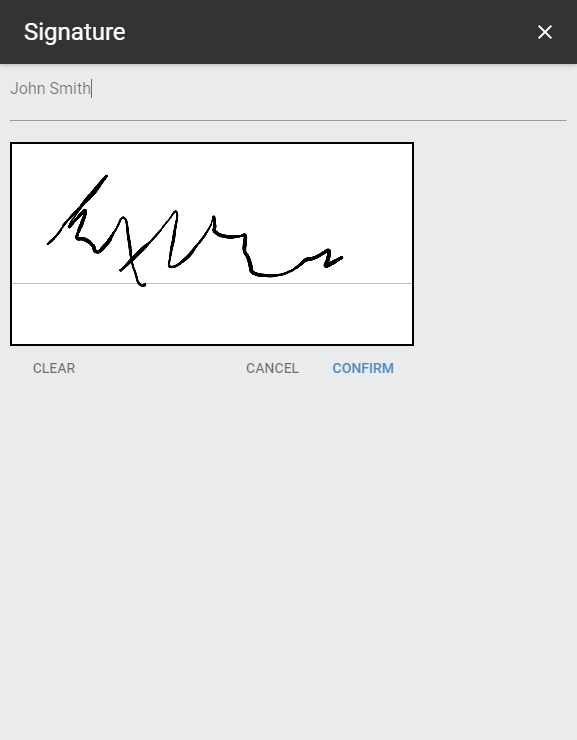
Ask the customer to provide their signature. |
|
4.
|
Tap Confirm. The shipment's status is now Pickup Completed. |
The shipment is now added to the list of completed orders and disappears from the active orders list.
IF YOUR STORE CANNOT FULFILL THE ORDER
If at least one of the requested items cannot be sold, for example because it is damaged or currently used as a demo in the store, you must request a shipment transfer from another store.
It's not possible to request a transfer for a single item. The entire shipment will be transferred to another store for fulfillment.
|
1.
|
Access the Active tab. |
|
2.
|
Locate the shipment you cannot fulfill. |
|
3.
|
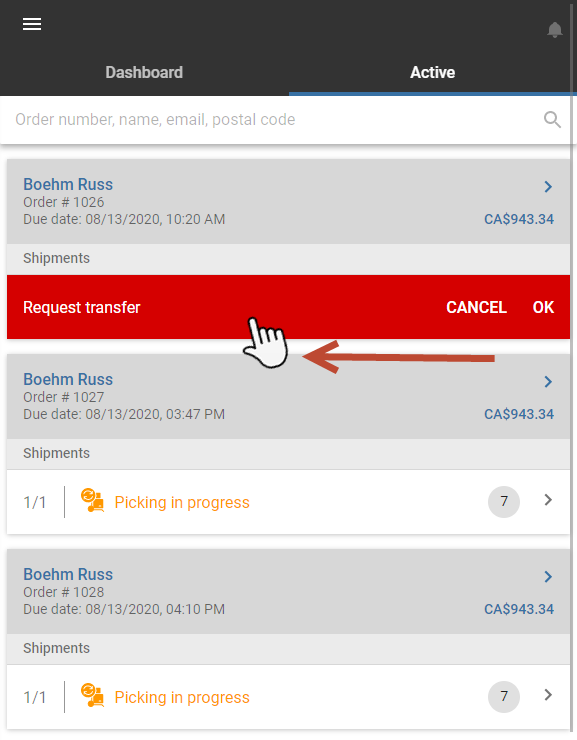
Using your finger, a stylus, or the mouse if you are on a computer, swipe left. A confirmation message is displayed. |
|
4.
|
Tap OK to request the transfer. |
|
5.
|
Provide the reason for the transfer request, then tap Continue. |
|
6.
|
Tap OK to close the confirmation message. |
The shipment disappears from the active orders list.
REFERENCES