Canceling Shipments
At times, an order can only be partially fulfilled. This could be due to unavailable inventory or a shipment can be roadblocked or a customer may decide to cancel one or their shipments. Remember that an order can be made up of several shipments with items assigned to each of them.
When shipment cancellation is completed, the customer will be refunded on their credit card automatically.
Follow these steps to cancel a shipment.
Note that canceling a single shipment will not affect any other shipments that are part of the same order.
You can modify the status of a shipment from the Order Details Panel.
| 1. | Select and click an Order. |
| 2. | Click the Items tab. |
| 3. | Click Change Shipment Status. |
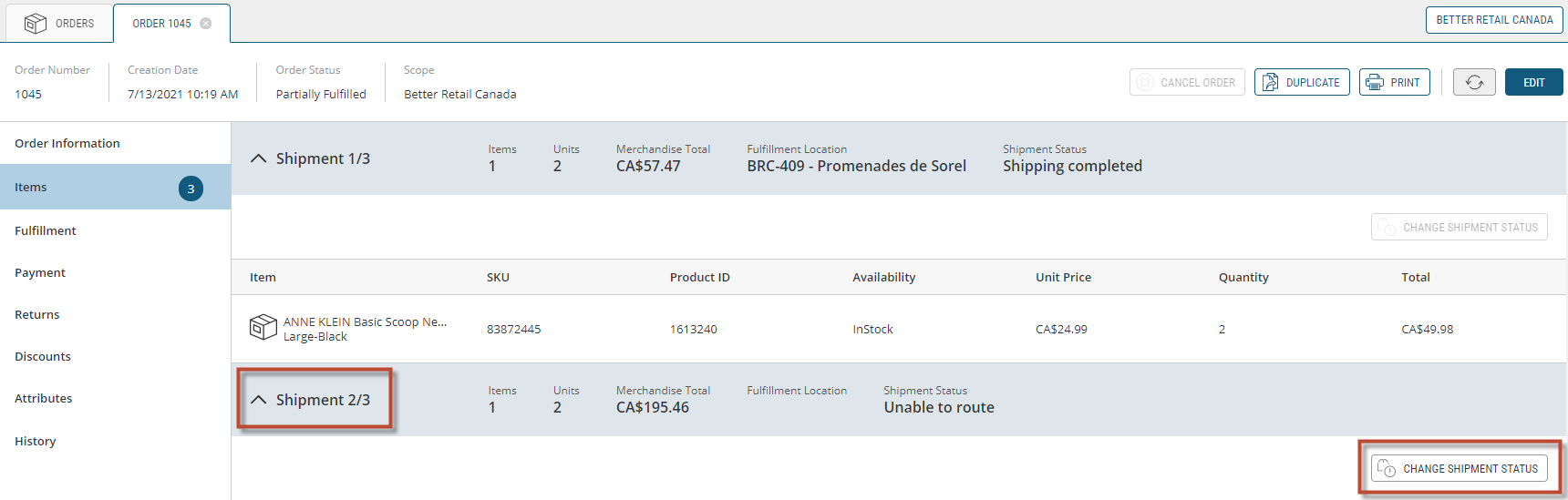
Figure 1 - Managing Fulfillment Options, Line Items that Make Up a Shipment
This will bring up the Change Shipment Status box.
| 1. | Select and click one of the options from the Target Status drop down menu. |
| 2. | Select one of two options from the Reasons drop down menu. |
| 3. | Enter notes in the Note box, describing the reason for the status change in greater detail, if required. |
| 4. | Click Modify to confirm status change or Cancel to abandon the process. |
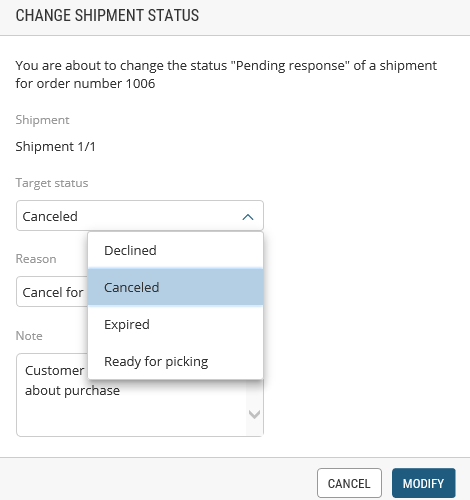
Figure 2 - Canceling Shipments, Change Shipment Status Dialog box
REFERENCES
| • | Canceling an Order |