Adding variants to a product
PRODUCT MANAGEMENT > PRODUCTS
Since variants are essentially different versions of a product, they are always housed within the base product that they originate from.
Note: The Variant tab only appears in the product details panel if the administrator added variant attributes to the product definition your product uses.
|
1.
|
Open the product details. |
|
2.
|
Click the Variants tab. |
|
4.
|
If the variant requires a different name than the base product, click the toggle to switch between the Variant or Product attribute value. |
|
•
|
Select the Variant setting when you want to use the variant attribute value to help you identify different versions of a product variant. |
|
•
|
Select the Product setting when you want to fallback to original product attribute value, if the same attribute is not defined at the variant level. |
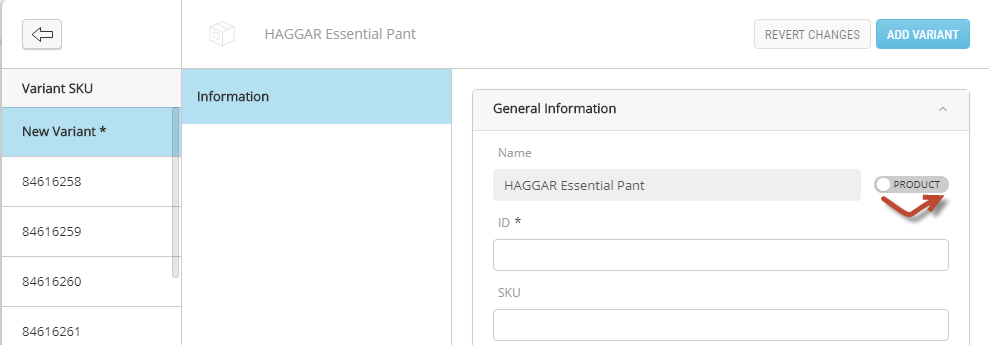
Figure 1 - Changing variant name
|
5.
|
Enter a unique Variant ID. |
|
6.
|
Enter values in the variant attribute fields. |
|
10.
|
Click Edit Prices. This opens the Commerce Management application. |
|
11.
|
Make the necessary modifications. The default prices are required to publish the new variants. Make the changes in Commerce Management application |
|
12.
|
Submit or Publish the product. |
Result: the new variant is available in the Order Management product list and on the web site.
REFERENCES