Associating Products to Categories
Categories are used to group similar products. You can have as many categories as you need to organize your catalog in a clear, user-friendly fashion. Publishing products in multiple categories will increase the product visibility in the catalog.
For example, sport pants could be associated to the men clothing category and the outdoor wear category.
You can manage a product's association with various categories or select various products and associate them to one or many categories. This article details how to manage the associations of one or many categories to selected products.
You can add the selected products to one or many categories simultaneously.
| 1. | Select various products using the selection method of your choice. |
| 2. | A toolbar appears at the bottom of the screen, click Add products to a category. |

Figure 1 - Actions toolbar
| 3. | Select the category or categories where to add the products. |
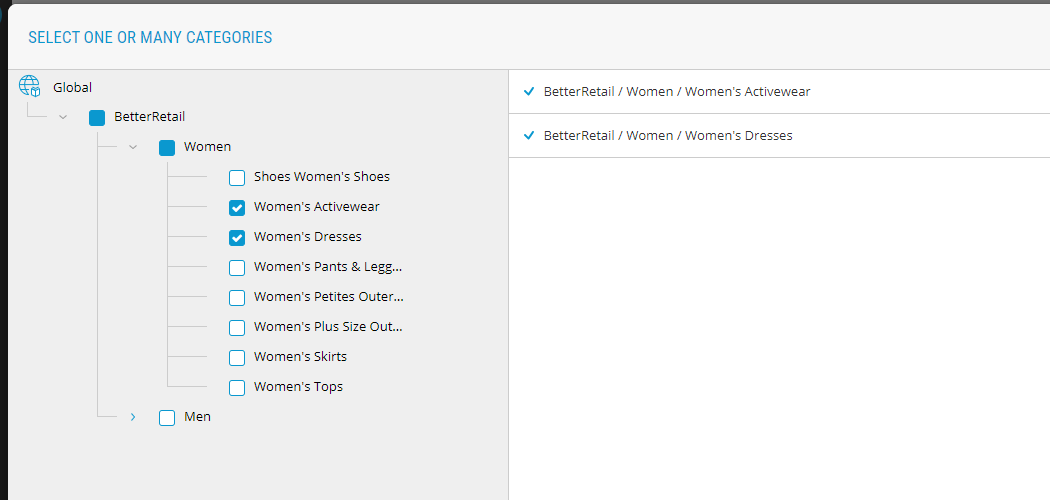
Figure 2 - Select categories
| 4. | Click Save. |
| 5. | Follow your internal publication workflow. |
Result: The products are now associated with the selected categories. The products must be published before the changes apply on the website. If the products are waiting to be approved, you can select them all using the filter button, available on the Product Management main page.
REFERENCES
| • | Product selection methods |
| • | Managing Products |