Setting Catalog Languages
PRODUCT MANAGEMENT > PRODUCTS
Orckestra Commerce Cloud provides an extensive selection of language to select from. When a Scope is created, a set of supported languages is assigned by the Administrator. In the Product Management, you can further select which of those languages you want to support in the corresponding catalog. In addition, one of them must be designated as the catalog default language.
|
1.
|
Use the Scope selector to select the sales scope that you want. |
|
2.
|
In the catalog tree, select the root of the catalog for your scope, |
The Languages are displayed in two columns, Available Languages and Selected Languages:
|
•
|
Available Languages: Languages set by the system administrator. You can choose to add or remove them whether they are required by the sales scope catalog, or not. |
|
•
|
Selected Languages: Languages currently used by this scope catalog. |
|
6.
|
Use the Add or Remove buttons to move languages from one column to the other: |
|
•
|
Select a language in the Available Languages column and click Add to add it to the Selected Languages. |
or
|
•
|
Select a language in the Selected Languages column and click Remove to remove it from the languages used by the scope catalog. The selected language is now available as an Available Languages. |
Warning: Once a language is removed, all product descriptions in this language are automatically deleted. This operation cannot be reversed.
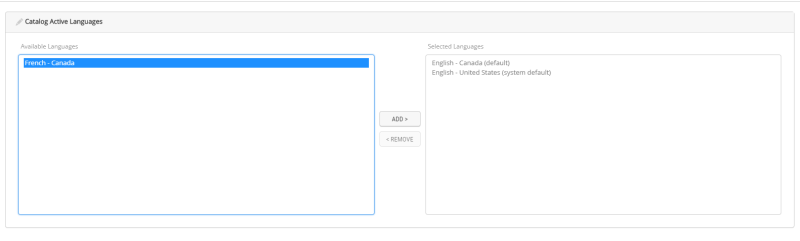
Figure 1 - Active Languages
Tip: If you made a mistake and you want to revert your changes, click Revert Changes. You can use this option only before saving your modifications.
REFERENCES