Using Filters
PRODUCT MANAGEMENT > PRODUCTS
With publication rights, you can publish or reject products that have been created or modified. Since catalogs can be voluminous, filters can help you narrow down the products that require you attention. Contributors can also use product filters to
Tip: When you have accessed the Product Details panel, simply start making any required changes to switch to Edit mode.
|
2.
|
Select a Language from the Language drop-down menu to specify the language that you want your results displayed in. |
|
3.
|
Click Filtersin the upper right corner. |
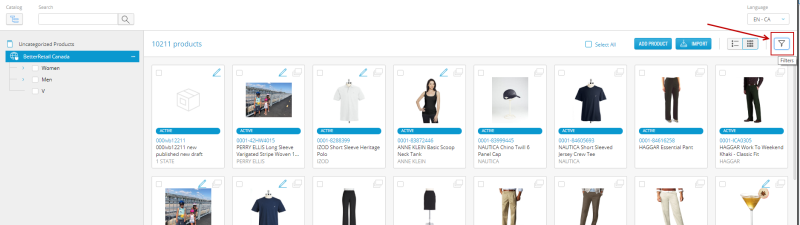
Figure 1 - Filters button
|
4.
|
You can select a filter in the Filters drop-down. These filters can help you narrow your search by product workflow state. Choose from: |
|
•
|
All: All the products in this scope. |
|
•
|
Draft In Progress: New products or existing products that have been modified but the new draft has not yet been submitted for approval or publication. |
|
•
|
Draft Pending Approval: Product drafts that have been submitted for approval but that haven't yet been approved or published. |
|
•
|
Rejected Drafts: Product drafts that have been rejected following a submission for approval. |
When you select click Filters, the number of products with this workflow state is displayed.
There is an infinite scroll bar on the right of the Product List, this scroll function only loads the data for the Product tiles that you are currently displaying. This optimizes system performance when navigating a large product set.
REFERENCES