Using Functions
Based on what type of editor in Experience Management your work in - visual or markup, the way you insert functions and edit their properties will differ.
In Visual Content Editor, you work with functions via GUI. The functions are represented with a special graphic object in the content and you edit its properties in ad-hoc property windows.
In Markup Editor, you normally insert and edit the function’s markup.
Inserting Functions
To insert a function:
| 1. | Place a cursor where you want the function to appear. |
| 2. | On the Insert menu, click Function (or Function Markup). |
| 3. | In the Select Function window, expand the proper nodes and select the function. |
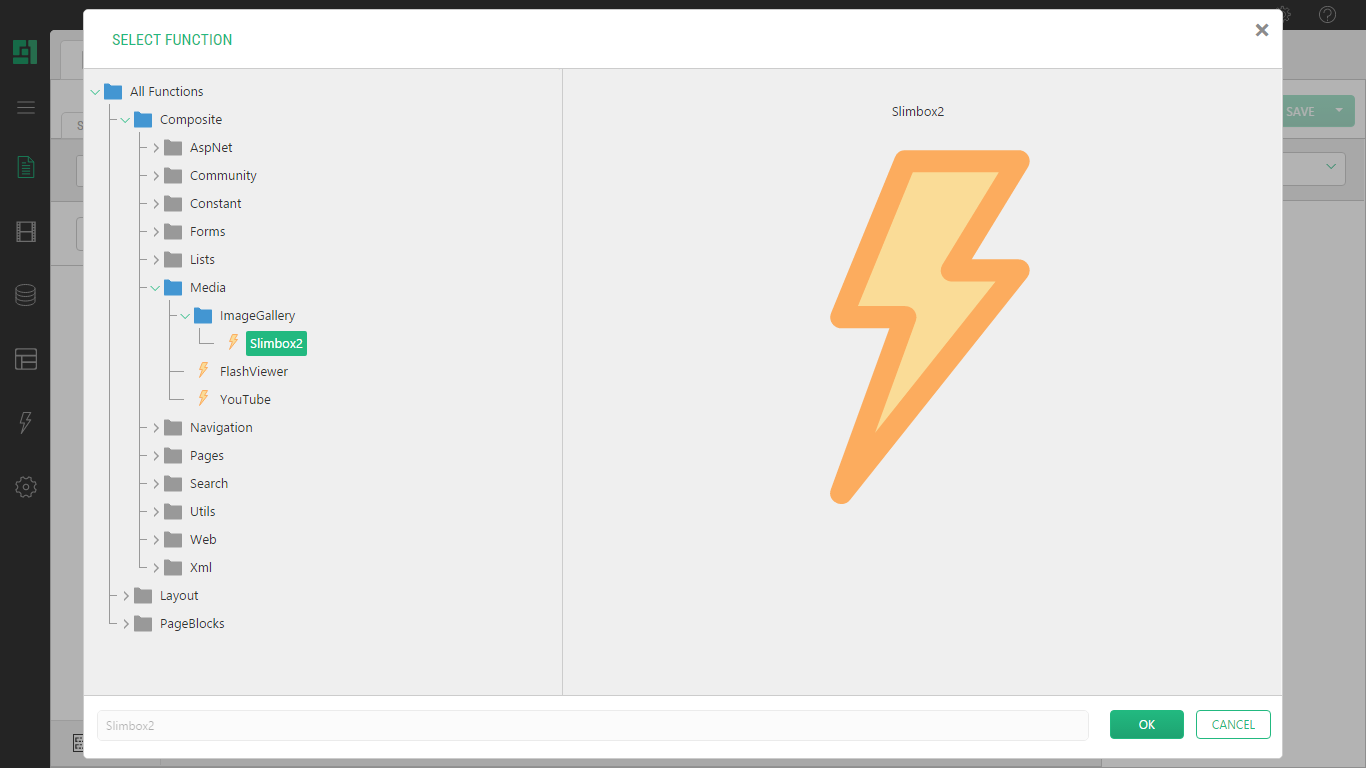
| 4. | Click OK. |
| 5. | In the Function Properties window, specify values in the parameters one by one. |
| 6. | Click OK. |
Note: that if the function has no parameters, it appears on the page or in the markup immediately after Step 4.
You might as well add the function to the source code manually as markup.
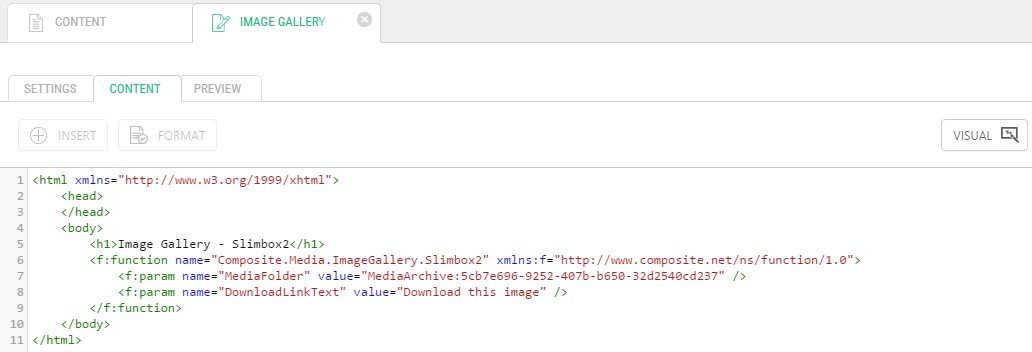
Note that a lot of functions in Experience Management come with packages and you first have to install them to use their functions (such as the Composite.Media.FlashViewer function in the figure above).
Every Visual function shows three parameters in the Basic view and four parameters – in the Advanced view, each with a default value. Normally, you can insert a Visual function with these defaults.
You can however change the default values of these parameters:
| • | List filter: The selection filter to apply to the data items to display (no filtering by default). (Available in the Advance view only.) |
| • | Item list length: The number of data items to display (10 by default). |
| • | Item sorting: The field by which the items must be sort. You can also use “(random)”for the value. |
| • | Item sort order: The order of sorting items: ascending or descending (ascending by default). |
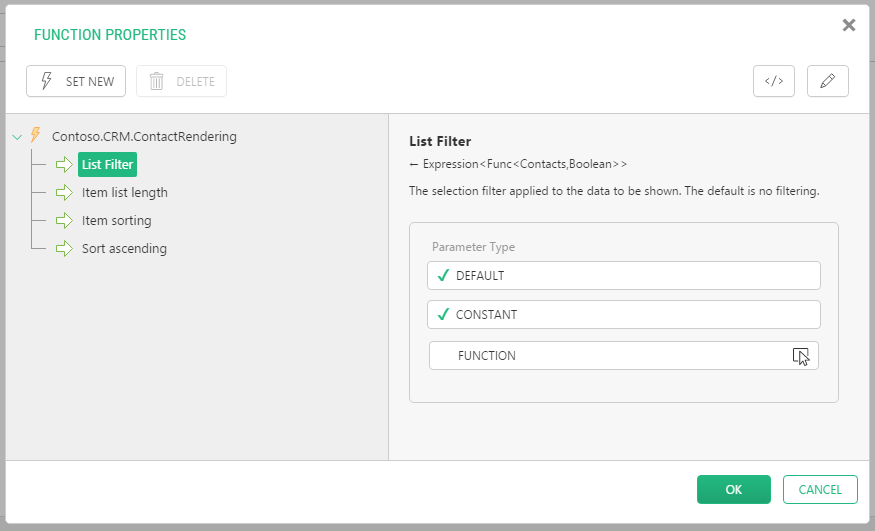
You can set the default values for the last three parameters when editing the visual function and adjusting its settings.
As to the List filter parameter, no filtering is used by default, however, you can apply one or more filters to the data items of the rendered type by using ad-hoc filtering functions. For information on filtering functions, see Filtering Data.
Editing Function Properties
Editing function properties implies modifying its parameters. In Visual Content Editor, you can use the Function Properties window to make necessary changes. However, you should edit the markup directly in the markup editor.
To edit function properties in the Visual Content Editor:
| 1. | Select the function on the page. |
| 2. | Click Function Properties on the tab’s toolbar, or Edit on the function preview. |
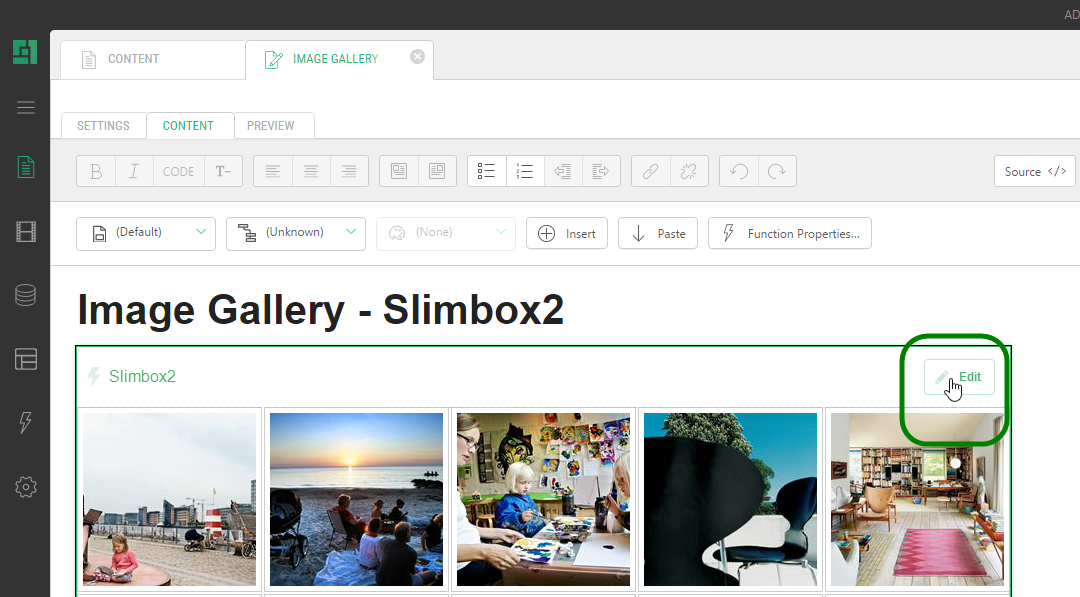
| 3. | In the Function Properties, set or change the values of parameters where necessary. |
| 4. | Click OK. |
Editing function properties in the markup editor:
| 1. | Locate the function in the markup. |
| 2. | When necessary, change the value of a parameter in the value attribute of the f:param element. |
| 3. | When necessary, add or remove one or more f:param elements that stand for function parameters. |
| 4. | Save the markup. |
Errors in Functions
When something in a function is set incorrectly, you might experience the so called “error in a function” when viewing it in a web browser.

To be able to see detailed information about the error, you need to be logged in to the Experience Management Console.

In this case, check if you have set all the required parameters, the values are valid, and the function is inserted correctly.
Testing functions
From the “Functions” module, you can also test certain aspects of functions. You can preview its result - if any - with:
| • | Predefined test values |
| • | Your own values |
| • | A different runtime: |
| • | A different page |
| • | A different scope |
| • | A different language |
Testing an Experience Management function:
| 1. | In the Functions module, expand All Functions. |
| 2. | Locate and select the function you need by expanding its respective namespace. |
| 3. | Click Test Function on the toolbar. |
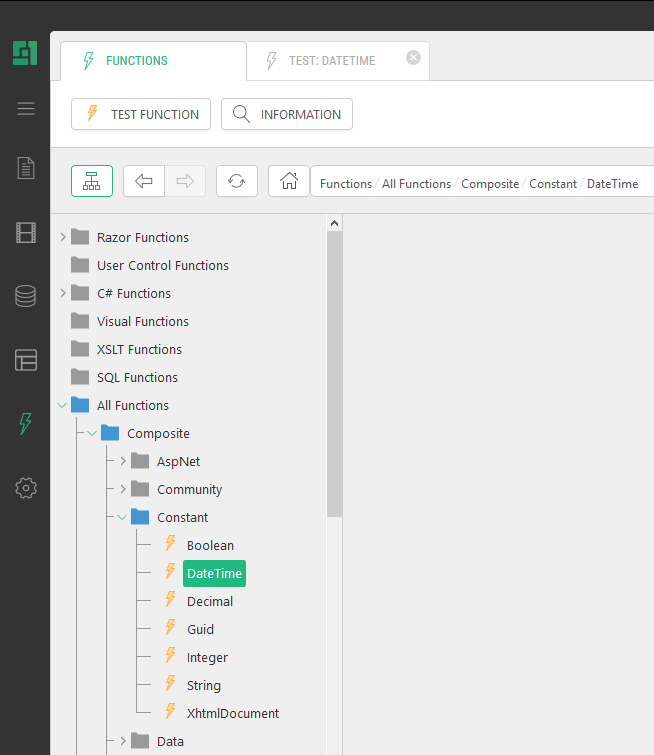
| 4. | The test view of the function opens. |
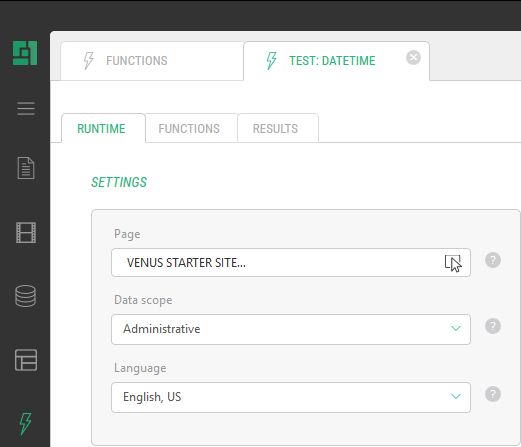
| 5. | On the Runtime tab, keep default test values in the Page, Scope and Language fields or override them with your own ones. |
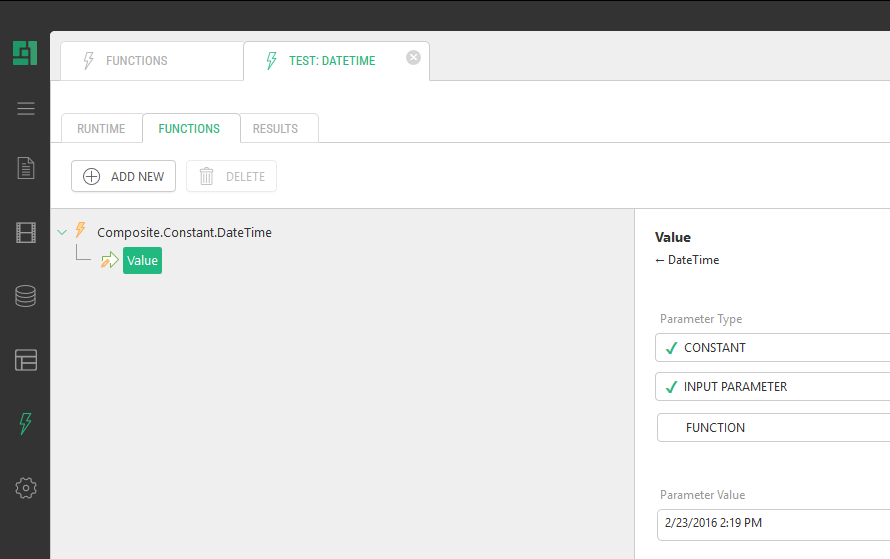
| 6. | On the Functions tab, keep the default test values of the function parameters or override them with your own. Here you can also add one or more functions if necessary, for example, to see how they interact. |
| 7. | On the Results tab, you can see how the function’s output with the specified runtime and values. |
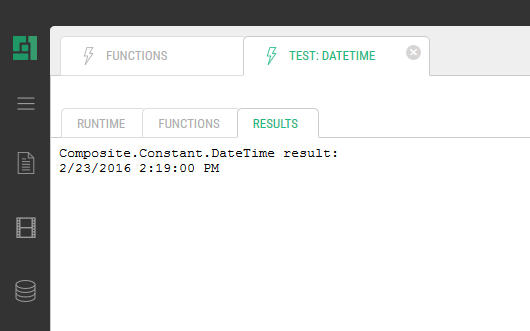
The Results tab displays errors in the function, if any.