Creating Specific Fields
EXPERIENCE MANAGEMENT > DATA
Now that you have learned how to create datatypes and add fields to datatypes, set properties and select widgets for the fields, you can now create fields that serve specific purposes.
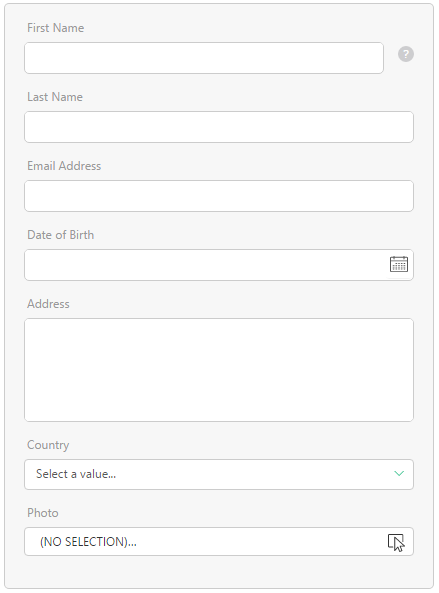
For example: you have a form that requires users to fill the following data:
For this example, you require a datatype with a number of specific fields.
You will need string fields for 4 items. However, one of them - the Address field - must be large enough to fit an address that might be quite long. Then, you will use the Date field for the user’s date of birth. For the Photo, you will allow the user to select one of the images available to serve as her or his photo. Finally, you will create a lookup with selected countries the user will be able to select from.
With this context, read the topics below to understand how to create:
|
1.
|
Add a field to the datatype. |
|
2.
|
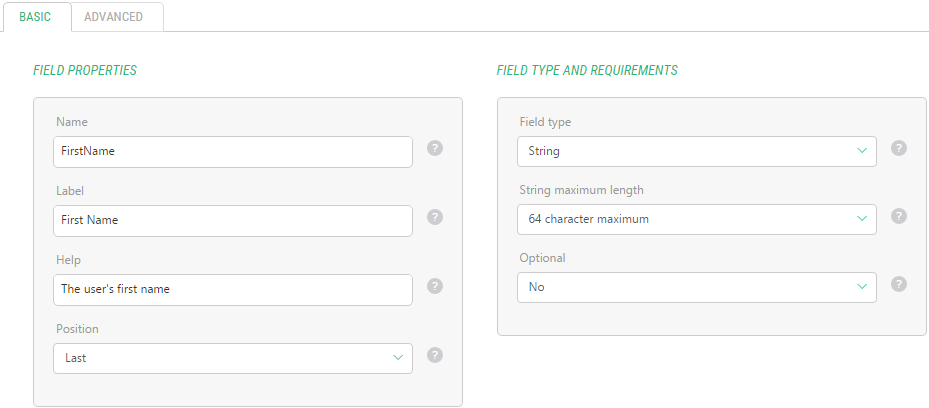
Set the basic properties such as the name, label, help text and position. |
|
3.
|
For the Field type, select String and specify the reasonable length maximum. For example: 64. |
|
4.
|
Specify whether this field is optional or required. |
|
5.
|
On the Advanced tab, make sure the TextBox is selected as the Widget type. |
The field will be available on an input form as a simple text box.
|
1.
|
Add a field to the datatype. |
|
2.
|
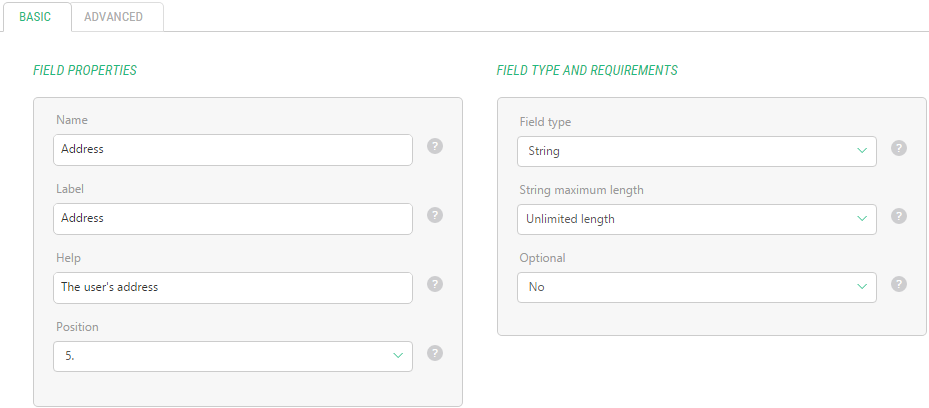
Set the basic properties such as the name, label, help text and position. |
|
3.
|
For the Field type, select String and specify the reasonable length maximum, For example: Unlimited length. |
|
4.
|
Specify whether this field is optional or required. |
|
5.
|
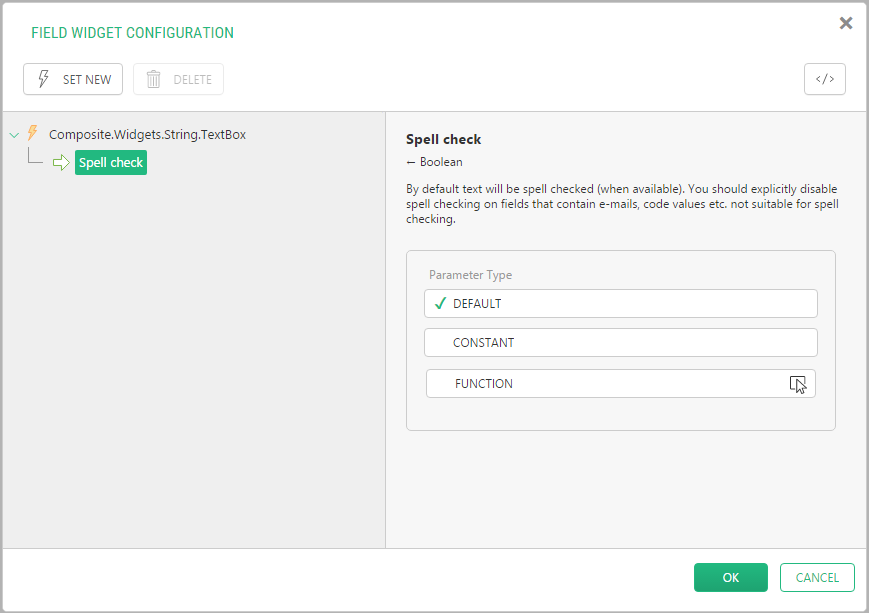
On the Advanced tab, click the Widgettype field to open the FieldWidgetConfiguration window. |
|
6.
|
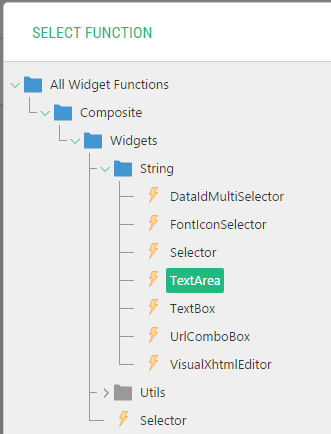
Click Set New to open the Select Function window and locate and select the TextArea widget (Composite.Widgets.String.TextArea). |
|
7.
|
Click OK in the Select Function window and in the Field Widget Configuration window. |
|
8.
|
If necessary, specify other advanced properties. |
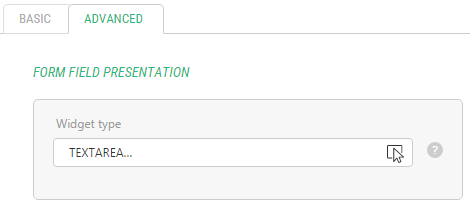
The field will be available on an input form as a text area.
|
1.
|
Add a field to the datatype. |
|
2.
|
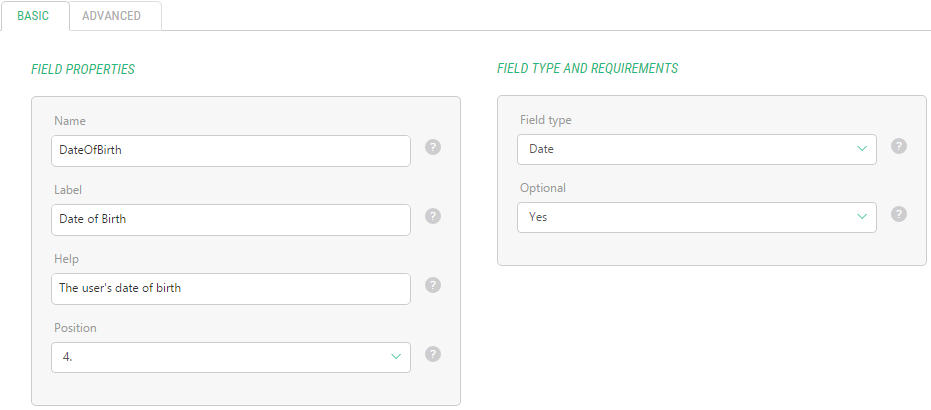
Specify its basic properties such as its name, label, help text and position. |
|
3.
|
For the Field type, select Date. |
|
4.
|
Specify whether this field is optional or required. |
|
5.
|
On the Advanced tab, make sure that the DateSelector is selected as the Widget type. |
|
6.
|
If necessary, specify other advanced properties. |
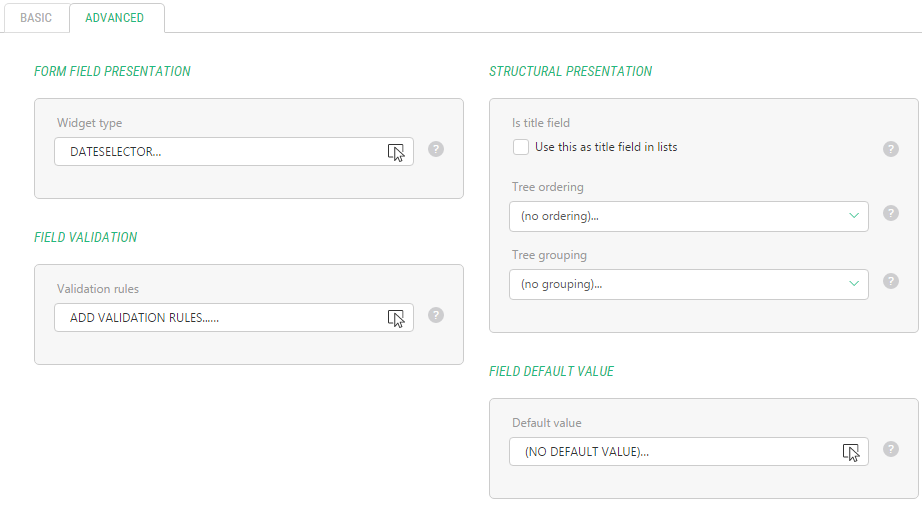
Now this field will be available on an input form as a date selector.
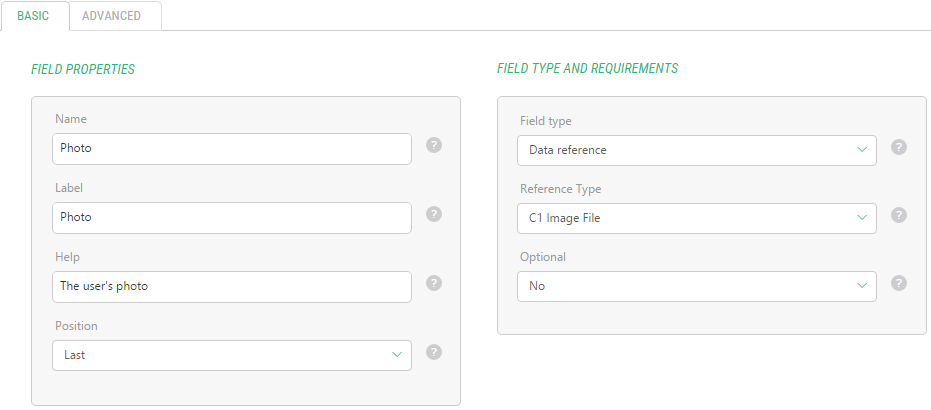
For the Data Reference field we will use the C1 Image File reference type.
|
1.
|
Add a field to the datatype. |
|
2.
|
Specify its basic properties such as its name, label, help text and position. |
|
3.
|
For the Field type, select Date Reference and for the Reference Type – C1 Image File. |
|
4.
|
Specify whether this field is optional or required. |
|
5.
|
On the Advanced tab, make sure that the ImageSelector is selected as the Widget type. |
|
6.
|
If necessary, specify other advanced properties. |
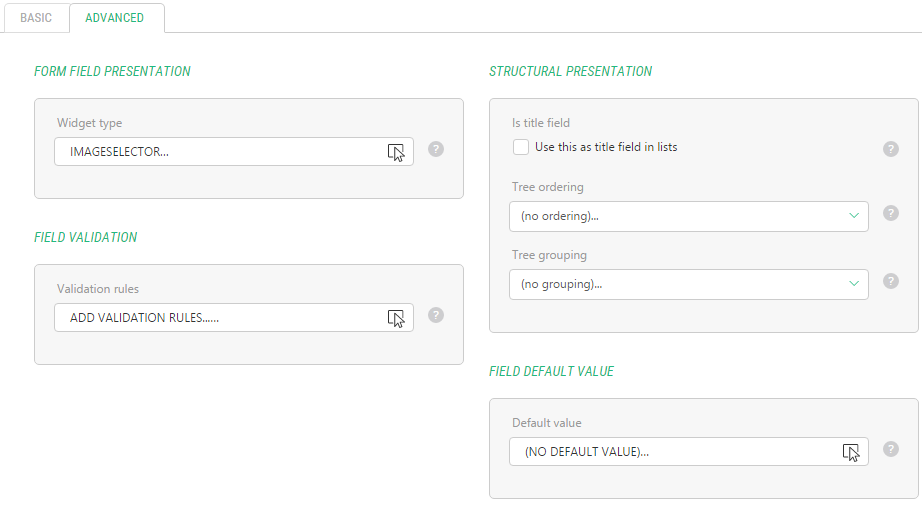
The field will be available on an input form as a drop-down list filled with titles of the images available in the Media Archive.
Use this process to create data reference fields for web pages, media files, media folders and data items available in other datatypes.
In some cases, you will not need to create a separate datatype, the data items of which will be used in the selector widget on the form. All you have to do is to provide the list of options separated with a comma (or another predefined separator) in a single string and use it with a simple Selector widget for the String field.
|
1.
|
Add a field to the datatype. |
|
2.
|
Specify its basic properties such as its name, label, help text and position. |
|
3.
|
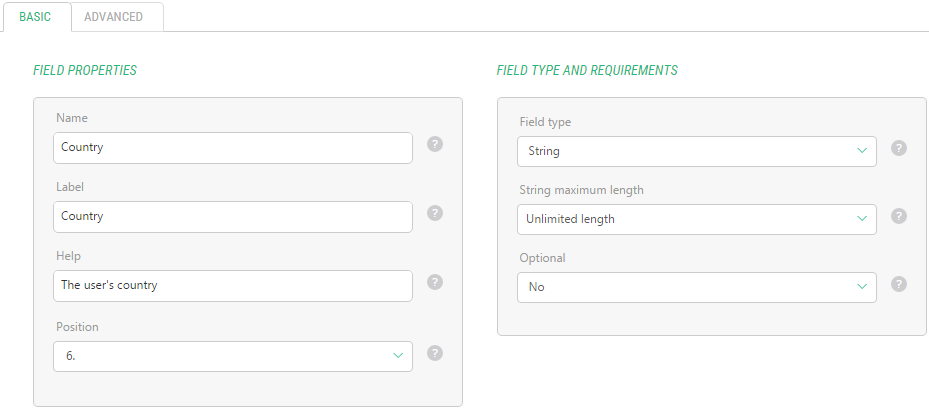
For the Field type, select String and specify the reasonable length maximum, e.g. Unlimited length. |
|
4.
|
Specify whether this field is optional or required. |
|
5.
|
On the Advanced tab, click the Widget type field to open the Field Widget Configuration window. |
|
6.
|
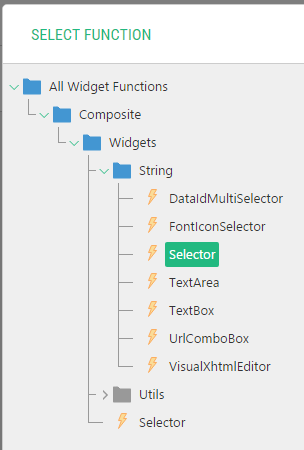
Click Set New to open the Select Function window and locate and select the Selector widget. Click OK. |
|
7.
|
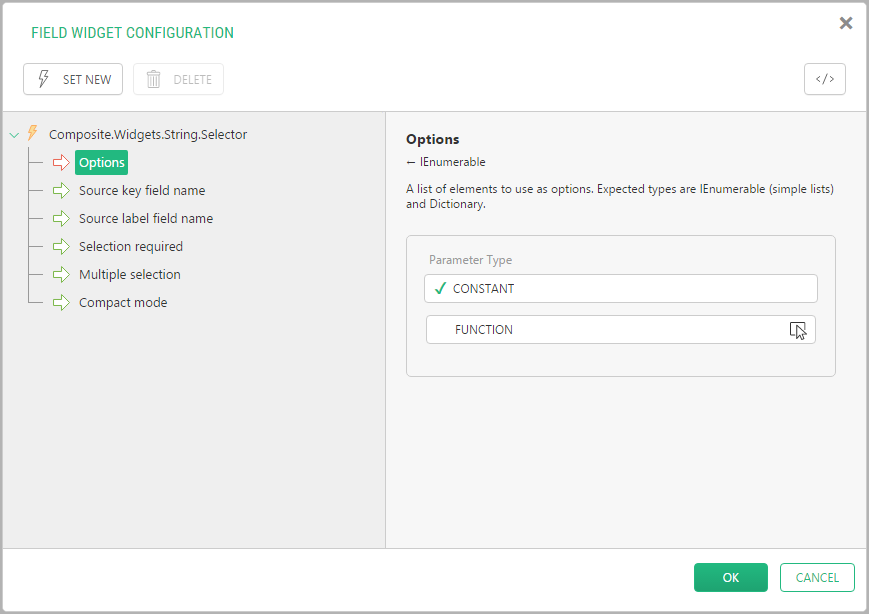
Select the Options parameter of the Selector widget and click Function to set its Parameter type. |
|
8.
|
|
|
9.
|
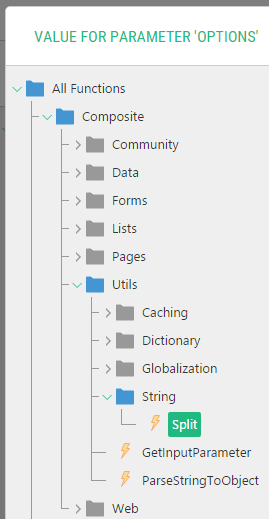
Locate and select the Composite.Utils.String.Split function in the Select Function window. Click OK . |
|
10.
|
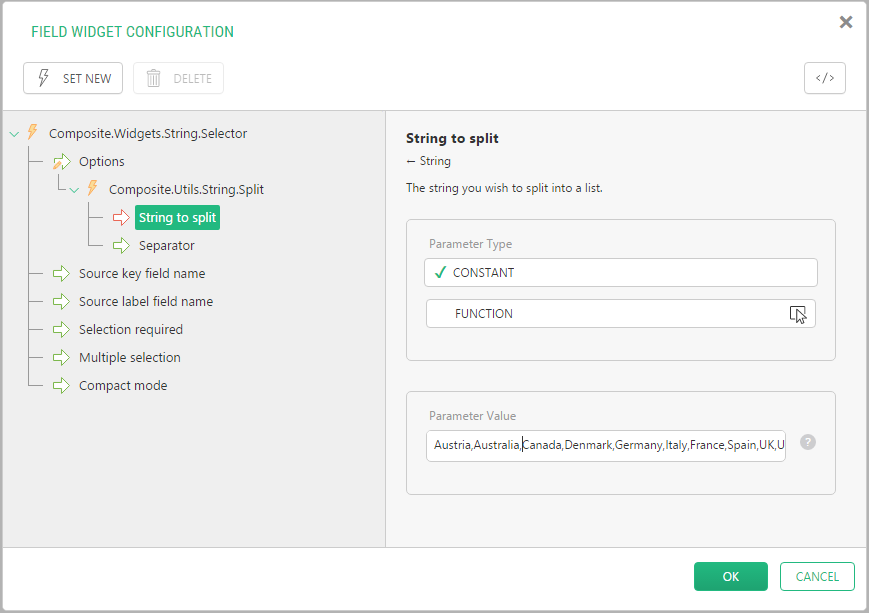
In the String to split parameter of this function, enter a few options separated by a comma, for example Canada,USA,UK,TheNetherlands,Germany. Click OK. |
|
11.
|
Click OK in the Field Widget Configuration window. |
|
12.
|
If necessary, specify other advanced properties. |
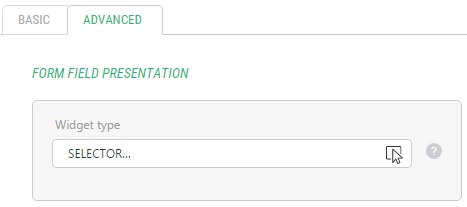
This field will be available on an input form as a drop-down list filled with options you have specified.