Adding Category Definitions
You can add category definitions by using the Administration page in the Product Management application.
Creating Category Definitions.
| 1. | Click Category Definitions. |
All current category definitions are listed.
| 2. | Click Add Category Definition. |
| 3. | Specify a unique Name for the definition (one word). |
| 4. | Enter a Description. This helps to understand the purpose of the category definition. |
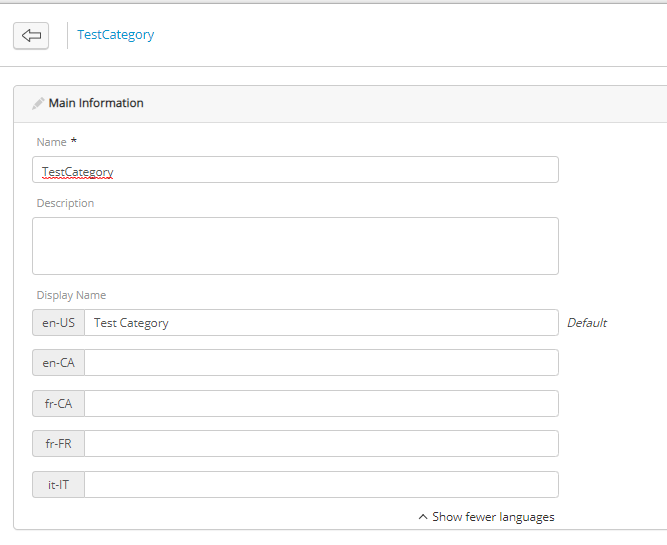
Figure 1 - Category definition creation
| 5. | Click Show more languages to enter the Display Names for each language-culture defined in your platform. |
| 6. | Under Custom Attributes, in the Available Attributes column, select one or many attributes. |
Tip: To pick multiple attributes at the same time, hold the SHIFT or CTRL key and click the attributes.
| 7. | Click Add. |
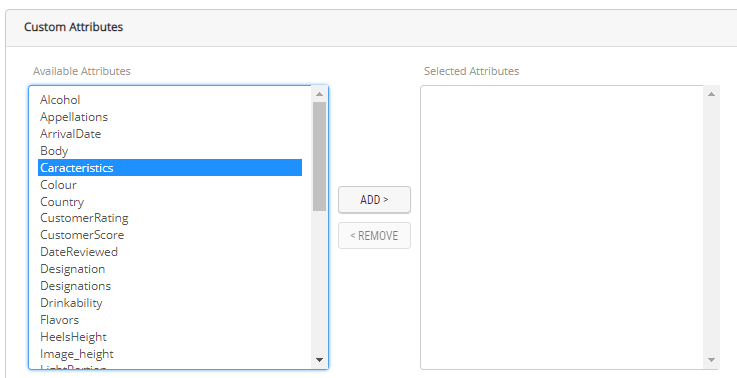
Figure 2 - Adding custom attributes to a category definition
| 8. | Click Save. |
Result: A category definition has been created.
Note: Product and category definitions names must be unique throughout the platform, same as product ID. Using a product or category definition name that already exists will result in an error while saving it.

Figure 3 - Error: The name is already in use
The purpose of category definitions
Product definitions are used to create products with specific characteristics. In contrast, attributes in category definitions can help define how categories will be displayed on a website or specify any configurations required to your business.
For example: CategoryDefA has a custom attribute named Listing. A developer could use this attribute to display products in category landing pages as a list using an external CMS.
When creating a category, the new category definition appears in an alphabetical order.
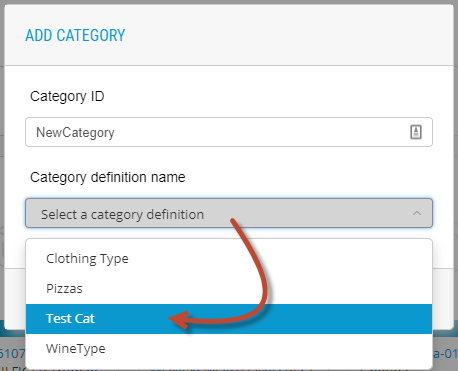
Figure 4 - Creating a new category using a category definition
For more information about category creation, see Creating Categories
REFERENCES
| • | Creating Categories |
| • | Managing Categories |
| • | Deleting Categories |
| • | Creating associations from a product |
| • | Creating a relationship involving categories |