Adding Product Definitions
Think of the product definition as a template to display your product characteristics but also define parameters that are required to communicate with external systems.
The product definition includes the Product Display Name, Description, and selected Default, Custom,
For example: create a product definition for shoes that has specific requirements such as the size, material and heel height. You can also create a different product definition for coats that would required different or additional attributes.
Adding a product definition:
| 1. | In the Administration module, select Product Definitions. |
| 2. | Click Add Product Definition in upper right corner. |
| 3. | Specify a unique Name for the definition. Accents and special characters are not allowed. |
| 4. | Enter a Description. This description helps users understand the purpose of the product definition. |
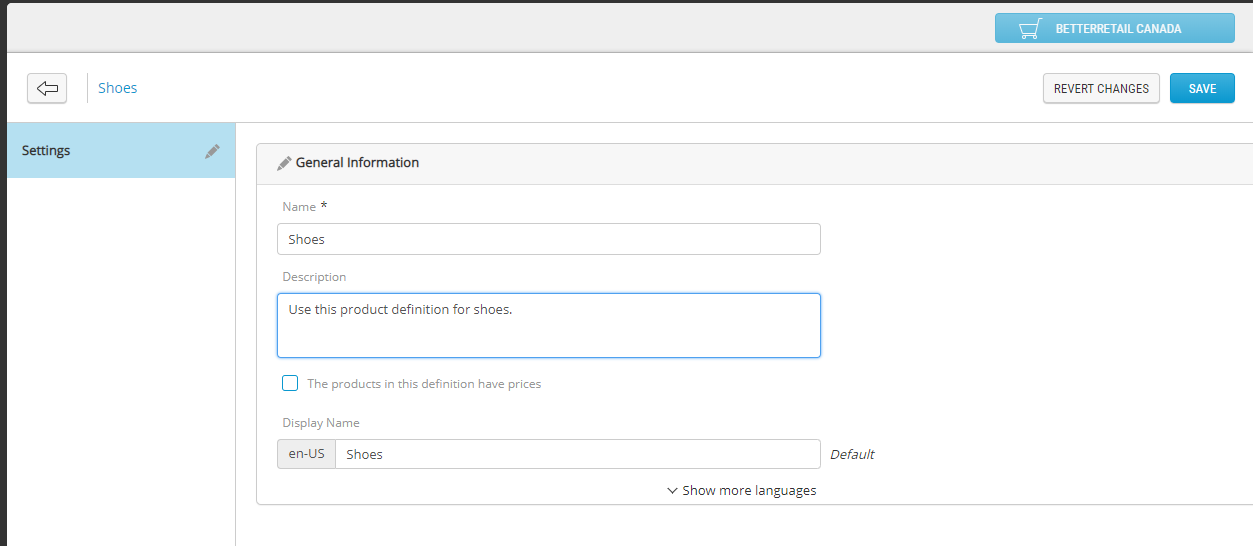
Figure 1 - Creating a product definition
Note: Product and category definitions names must be unique throughout the platform, same as product ID. Using a product or category definition name that already exists will result in an error while saving it.

Figure 2 - Error: The name is already in use
| 5. | OPTIONAL: If the products in this definition require prices, select The products in this definition will have prices. |
| 6. | Click Save. A confirmation message appears. |
The product definition is created, you must now specify the custom
Tip: When a category definition or product definition ID is already in use, it does not mean you cannot use it in your category nomenclature. The category definition and product definition IDs are unique name used throughout Orckestra Commerce Cloud. However, the display names can be changed as you please. For example. you could have a main category named Women and a sub-category named Women elsewhere in your category tree.
Adding Custom Attributes to a Product Definition
Important: The default attributes are system attributes. They cannot be modified or deleted.
To learn more about custom attributes and variant attributes, see Working with Attributes and Understanding Products.
| 1. | Select Custom Attributes. |
| 2. | Click Manage Custom Attributes in the upper right corner. |
| 3. | In the Available Attributes column, select one or many attributes. |
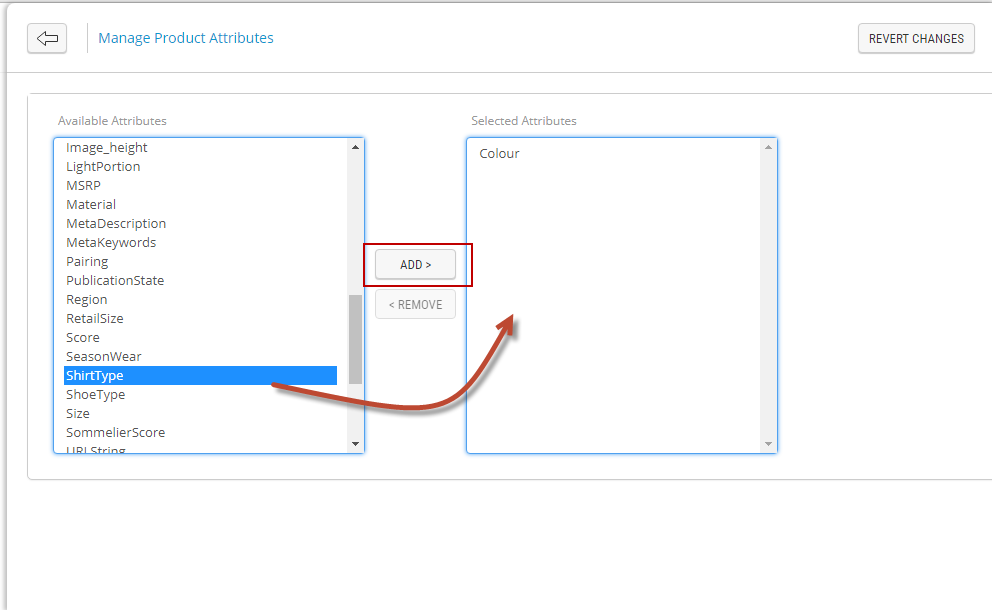
Figure 3 - Adding product attributes to a definition
Tip: To pick multiple attributes at the same time, hold the SHIFT or CTRL key and click the attributes.
| 4. | Click Add. |
| 5. | Click the Back arrow  . . |
| 6. | Click Save in the upper-right corner of the screen if you do not have further modifications. |
Adding variant and key variant attributes
Important: Attributes of type currency, date and time, or multi-select lookup list cannot be used as key variant attributes. In this situation, the toggle button under Key Variant is not displayed.
First, you will define variants. Once they are selected, you will specify which selection become key variant attributes.
| 1. | Click Manage Variant Attributes in the upper right corner. |
| 2. | In the Available Attributes column, select one or many attributes that you will use as variants. |
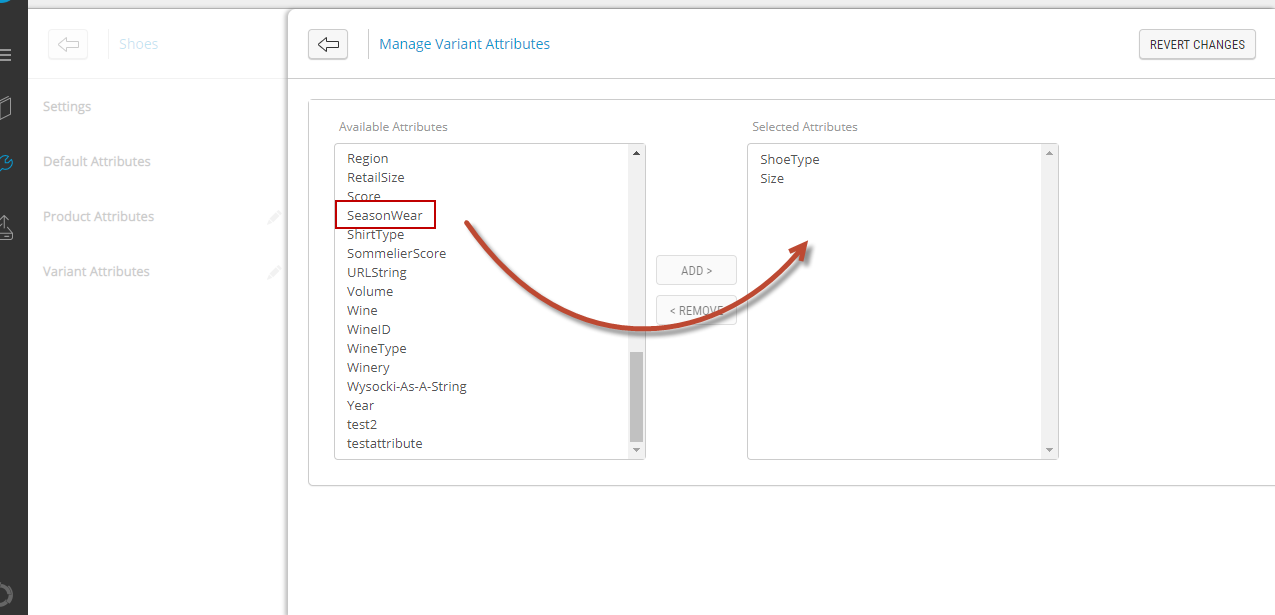
Figure 4 - Adding product attributes
Tip: To pick multiple attributes at the same time, hold the SHIFT or CTRL key and click the attributes.
| 3. | Click Add. |
| 4. | Click Back. |
| 5. | Slide the toggle buttonfor each variant attribute you want to define as key variant attribute. |
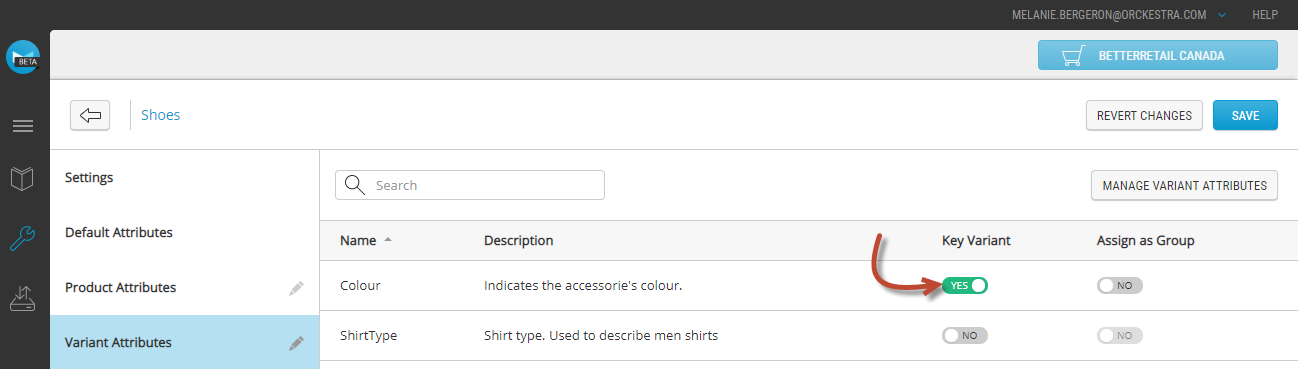
Figure 5 - Defining a key variant attribute
| 6. | When an attribute is defined as a variant, you can also assign it as a group. |
For example: when a variant is assigned as a group, the variant name appear as a group in the Variants > Information tab of a product.

Figure 6 - Variant assigned as a group example
| 7. | Click Save. |
Result: You created a product definition and defined product attributes
Attention: Adding variants to an existing product definition impacts all products that share the same product definition, including those for which inheritance is broken.
REFERENCES
| • | Managing Product Definitions |
| • | Creating Products |
| • | Understanding Products |