Creating Lookups
PRODUCT MANAGEMENT > ADMINISTRATION
Lookups are lists of choices that can be defined as attributes in Orckestra Commerce Cloud. You can add or edit existing lookups. Lookups cannot be deleted once created. Use this option to create lookup types for attributes to be used in profiles, products and categories.
For example, you could create a list of colors that correspond to apparel you usually sell. The list could include Black, Red, Green, Blue, Yellow or White.
When associated to an attribute and added to a product definition, a product editor can select one of the color from the list as the product attribute to describe the product.
When set as an attribute, you can set a default selection or allow multi-selections. For more information about setting a lookup as an attribute, see (insert link).
You need to specify at least one value for any lookups that you create. You cannot create a lookup that contains no lookup values.
|
1.
|
In the Navigation Panel select Lookups. |
|
2.
|
In the toolbar of the list, click Add Lookup. |
|
3.
|
Enter the lookup Name. |
|
4.
|
Enter a Description. This helps administrators differentiate lists. |
|
5.
|
Click Show more languages. |
|
6.
|
Enter a Display Name for each language-culture. |
Note: When a multilingual (language-culture) field is left empty, it falls back to the default language value. If no display name value are available, the Lookup Name is used as a display name for all languages. It is essential to configure these values because they may be visible on your website.
|
7.
|
Click Save in the upper right corner. |
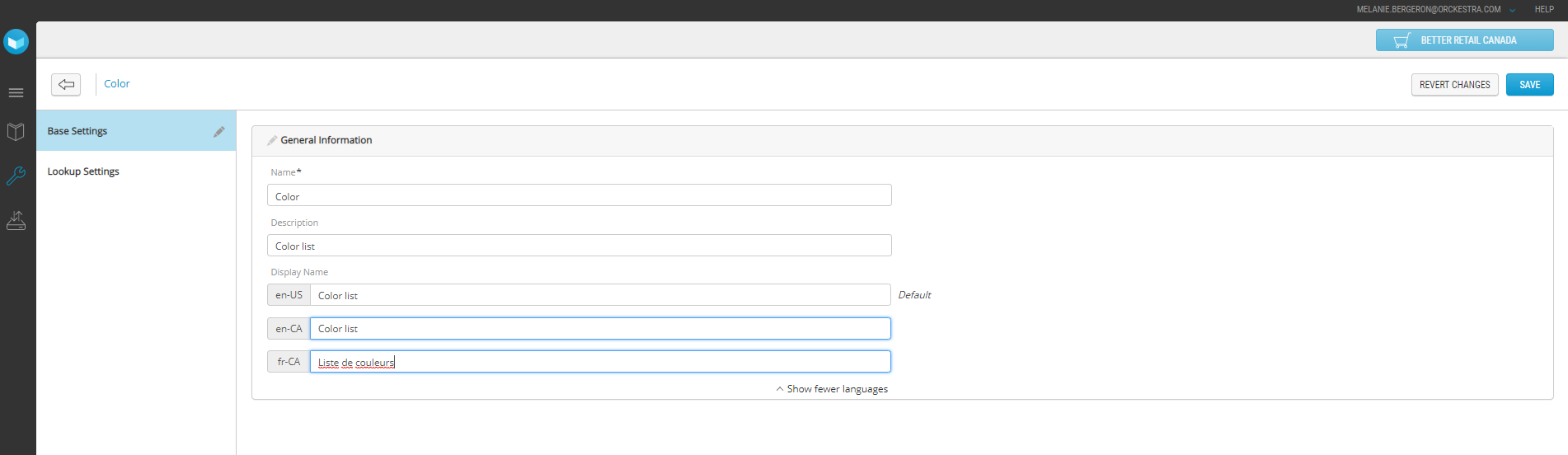
Figure 1 - Lookup creation
|
8.
|
Click Lookup Settings. |
|
9.
|
Click Add Lookup Value. |
|
11.
|
Enter the Sort Order position (numeric value). |
|
12.
|
Enter a Display Name for each multilingual field. |
These names are important because they may be visible on the website.

Figure 2 - Adding a lookup value
|
13.
|
Click Save to confirm. |
|
14.
|
Repeat steps 9 to 13 for each value you want to add to the lookup list. |
REFERENCES