Filtering Data
By default, the Get<DataType>Xml function retrieves all the data items of a specific datatype. In practice, you only need specific data items that match certain conditions. And this is where filtering comes in handy.
You need to specify your filters in the Filter parameter of the Get<DataType>Xml function:
Filter: (Expression<Func<[DataType],Boolean>>): An expression function that takes the datatype as its input parameter, iterates the data items and returns ‘true’ if a data item matches s specific condition and ‘false’, if it doesn’t.
To filter data, use one of the filter functions available for the datatype. You can use two types of filters:
| • | DataReferenceFilter: selects a single data item |
| • | FieldPredicatesFilter: selects multiple data items that meet the criteria you can set with predicates on each of the datatype’s field. |
And the CompoundFilter function allows you to combine two filters defining relations between them as “And” or “Or”.
To filter data:
| 1. | Select the Filter parameter. |
| 2. | Click Function in the Parameter type group box. |
| 3. | In he Value for Parameter Filter window, expand All functions, then namespaces the datatype belongs to (for example: betterretail.Customers). |
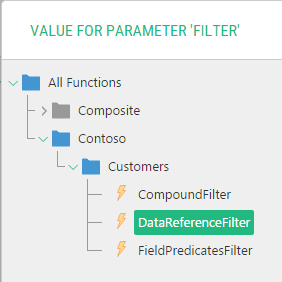
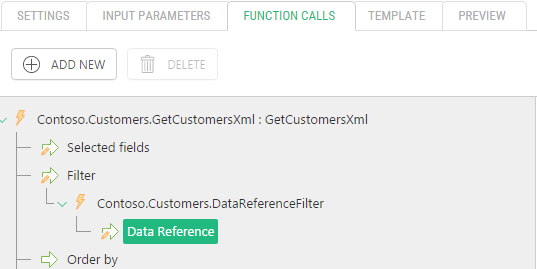
| 4. | Select one of the filter functions and click OK. The function will appear under the Filter parameter of the Get<DataType>Xml function in the Function Calls tree. |
| 5. | Set the parameters. |
| 6. | Save the function. |