Picking a Shipment
Shipments
An order shipment with a Picking in progress or Packing in progress status cannot be updated while an other user is fulfilling the order. When an order shipment is fulfilled by an other user, the action buttons are dimmed or hidden. Only administrators can cancel picking or packing for another user.
To pick a shipment:
| 1. | Select the shipment you want to start picking. |
| 2. | Tap the orange action button  in the bottom-right corner of the screen to start picking. in the bottom-right corner of the screen to start picking. |
The shipment status is updated to Picking in Progress. At the top of the screen you will find the time remaining to pick this shipment, the picker's name and the number of items to pick.
Pay attention to the Time Remaining section. According to SLA policies set in Orckestra Commerce Cloud, you must not exceed this time limit. By default, a notification appears in the application when the time remaining reaches 15 minutes or less.
Below the shipment details, you will find details about the items you must pick to complete the picking step.
You cannot pick fewer items than required. If you cannot fulfill the entire shipment using your store's inventory, you must
| 3. | To select the quantity of units: |
| a. | Select the corresponding number of units for each item in the shipment using the UP and DOWN arrows, or |
| b. | Tap the units field and use the keyboard to enter the number of units picked. |
If you enter more units than have been requested, an error message is displayed.
| a. | Tap the Scan or enter SKU/Barcode field at the top of the screen. Scan the item, then tap the +, or |
| b. | Tap the Scan or enter SKU/Barcode field at the top of the screen and enter the SKU manually, or |
| c. | Tap the units field and use the keyboard or use the UP and DOWN arrows to increase or decrease the number of units picked. |
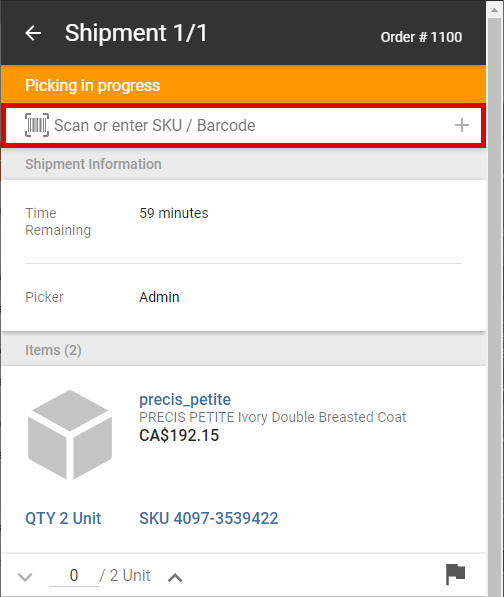
Tap the flag to report a specific issue about an item. A menu appears. 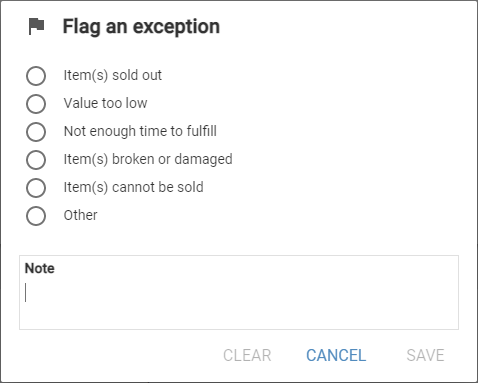
Make a selection in the list (mandatory) and provide a note (optional). When an issue has been flagged, the flag turns red  . To cancel the report, tap the flag again and tap Clear to empty the form and remove the report. The information contained in these notes will remain visible in the shipment as long as the shipment is in the Mobile Store Fulfillment application.
| 4. | Tap the action button  in the bottom-right corner of the screen. in the bottom-right corner of the screen. |
| a. | To complete the picking step, tap Complete Picking. |
If the ability to create split shipments has been activated, picking can be completed even if not all the items have been picked. A confirmation message will be displayed, asking the picker whether they wish to create a new shipment with the missing items. 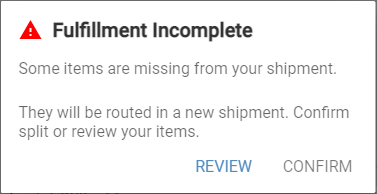
If the picker taps Review, they will be returned to the picking screen. If they tap Confirm, picking will be completed and the missing items will be added to a new shipment and routed to another fulfillment center.
Note that there are two different types of split shipments, and that either type must be selected by your administrator:
Splitting on units allows pickers to reflect only what is available, which means if the customer has requested 3 black ACME brand t-shirts in a size Large and you only have 1 available to sell, picking can still be completed.
Splitting on items requires pickers to pick all the requested units of a given item. If splitting on items is activated, an error message will be displayed when attempting to complete picking if all the requested units have not been picked (for example, if the customer has ordered 3 black ACME brand t-shirts in a size Large and only 2 have been picked).
| b. | To cancel the picking step so picking can be taken over and completed by another user, tap Cancel Picking. |
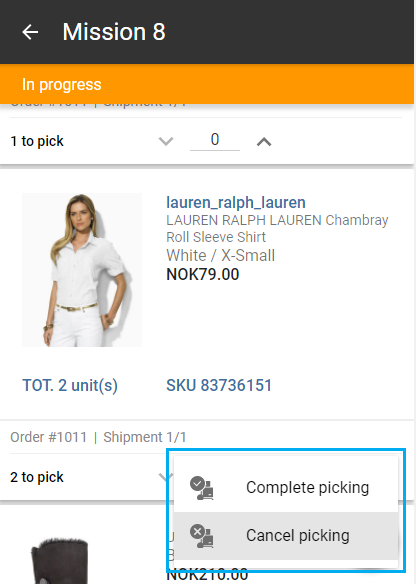
Once picking has been completed, the shipment status is updated to Ready for Packing.
REFERENCES
| • | Rejecting a Shipment |
| • | Packing a shipment |
| • | Shipment Statuses |
| • | Configuring the Ability to Split Shipments |